Viewing All Samples
Updated Apr 4, 2026
Sample Library
The All Samples page is where you browse your company’s sample library. Every sample your team has added is listed here with images, categories, and key details.
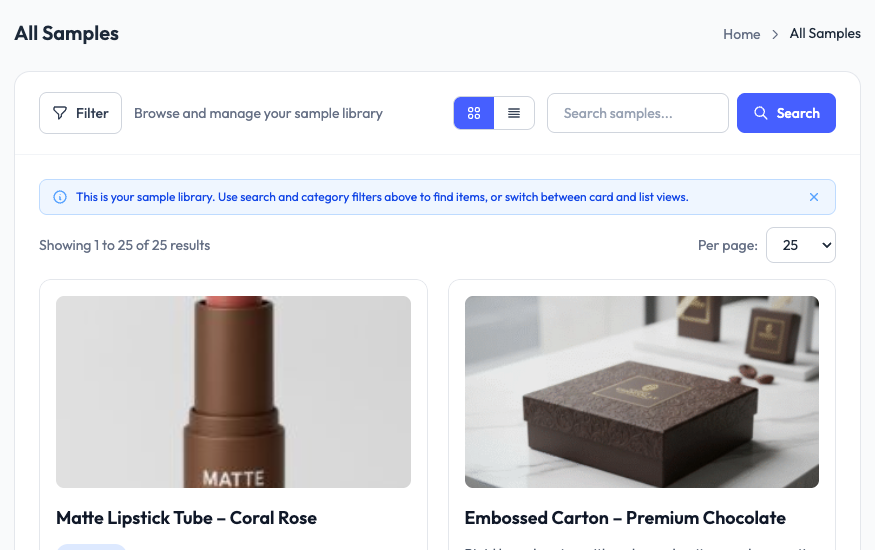
Browsing samples
Samples are displayed in a grid layout with product images, names, and category tags. You can scroll through the library or use the search and filter tools to narrow results.
Searching and filtering
- Search: Use the search bar to find samples by name or SKU.
- Category filter: Filter by sample category to see only specific product types.
- Sort: Sort samples by name, date added, or other criteria.
Pagination
If your library has many samples, results are paginated. Use the page controls at the bottom to navigate through the full list.
Adding samples to an order
From the All Samples page, you can add samples directly to your cart to start building an order. Click a sample to view its details, then add it to your cart with the desired quantity.