Uploading Your Company Logo
Updated Apr 4, 2026
Workspace and Branding
Upload your company logo to brand your workspace. The logo appears in the sidebar navigation, on order documents, and in emails sent from SampleHQ.
How to upload your logo
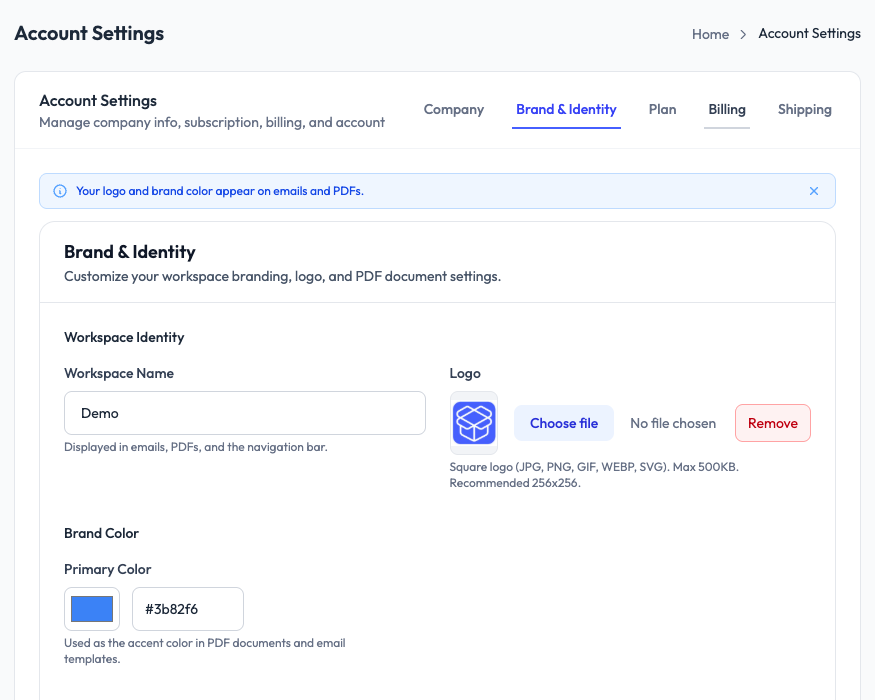
- Go to Workspace Settings > Account Settings.
- Open the Brand and Identity tab.
- In the Logo section, click Choose file and select your logo image.
- The logo previews immediately after upload.
Logo requirements
- Supported formats: JPG, PNG, GIF, WEBP, SVG
- Maximum file size: 500 KB
- Recommended dimensions: 256 x 256 pixels (square)
Removing the logo
To remove your current logo, click the Remove button next to the logo preview. The workspace will revert to showing the default SampleHQ icon.