Quick Start: Sales Rep
As a sales rep, SampleHQ is where you create sample orders for your prospects and customers, track what has shipped, and see which samples are driving revenue. Here is what to focus on when you first log in.
Your dashboard
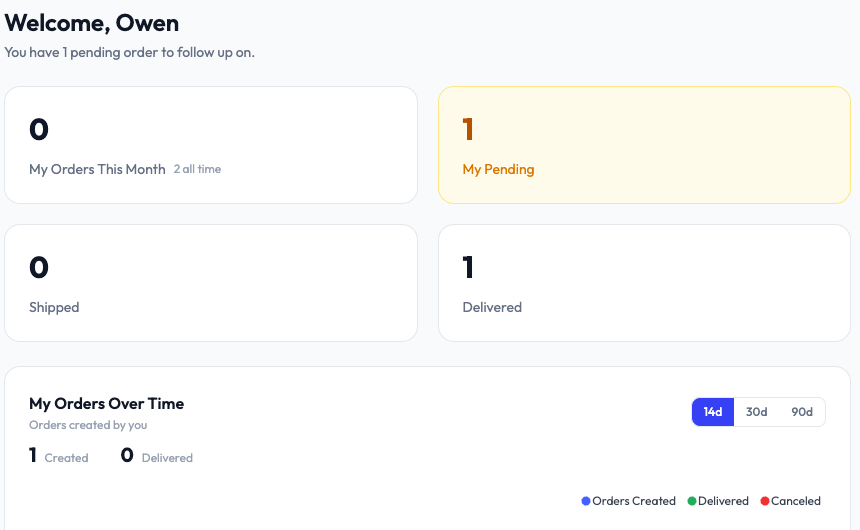
Your dashboard is personalized to your activity. You will see four main cards: My Orders This Month, My Pending (orders waiting to ship), Shipped, and Delivered. Below the cards, a chart shows your order activity over time. This view is different from what owners and managers see.
Browsing the sample catalog
Go to All Samples in the sidebar to browse your company’s sample library. You can search by name or SKU, filter by category, and view sample details including custom fields and images. If your company has set up sample kits (pre-configured bundles), you can add an entire kit to your cart at once.
Creating a sample order
- Go to Create Order in the sidebar.
- Add samples from the catalog to your cart. You can also add collateral items like brochures or datasheets.
- Enter the recipient’s shipping address. The address field supports autocomplete to speed things up.
- Select a letter template if you want to include a personalized note with the shipment.
- Submit the order. Your fulfillment team will see it in their queue.
Tracking your orders
Go to All Orders to see your submitted orders and their current status. You will see only your own orders here. Click any order to view full details including shipping tracking once a label has been generated.
Attribution
When a sample leads to a closed deal, you can assign a dollar value to it. Open the order or sample detail and use the attribution modal to enter the value. Your manager can see aggregated attribution across the team, but you can track your own numbers in the Attribution section.
Linking deals from your CRM
If your company has connected HubSpot or Salesforce, you can link a CRM deal directly to a sample order using the deal picker. This connects the sample activity to the revenue in your pipeline.