Quick Start: Fulfillment Team
As a fulfillment team member, your main job in SampleHQ is processing sample orders: reviewing what needs to go out, packing shipments, generating labels, and keeping order statuses up to date. Here is how to get started.
Your dashboard
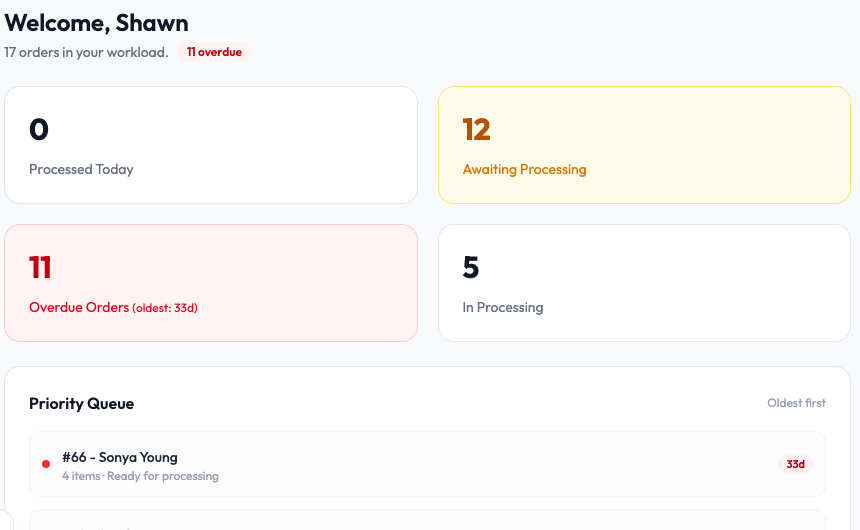
Your dashboard is built around operations. You will see four key cards: Processed Today (what you have completed), Awaiting Processing (orders in the queue), Overdue Orders (anything past its expected processing time), and In Processing (orders you are currently working on). Below the cards, a Priority Queue lists orders sorted oldest first so you know what to pick up next.
Processing an order
- Go to All Orders in the sidebar. Orders in Pending or Processing status are waiting for fulfillment.
- Click an order to open its details. Review the line items (samples, quantities, any collateral or letters to include).
- Pick and pack the items.
- Generate a shipping label directly from the order. SampleHQ connects to Shippo, so you can compare rates across carriers (USPS, UPS, FedEx, DHL) and purchase a label without leaving the app.
- Once the label is purchased, update the order status to Shipped. The tracking information from Shippo is recorded on the order.
Batch shipping
If you have multiple orders ready to ship, use the batch shipping feature to generate labels for several orders at once instead of processing them one at a time.
Tracking and notifications
Shipment tracking updates come in automatically from Shippo. You do not need to manually update statuses after a label is created. The sales rep and customer receive email notifications as the shipment progresses.
Key areas in the sidebar
- Dashboard for your fulfillment metrics and priority queue
- All Orders for the full order list with status filters
- All Samples to look up sample details when packing