Quick Start: Account Owner
As the account owner, you are responsible for setting up SampleHQ for your team. This guide walks you through the essential first steps after signing in.
Step 1: Complete your company information
Go to Account Settings and open the company information section. Fill in your company name, email, phone number, website, mailing address, and tax ID. This information appears on order documents and emails sent from your workspace.
Step 2: Upload your logo and set branding
In the Brand and Identity tab under Account Settings, upload your company logo and choose a primary accent color. You can also select a design theme (Classic, Bold, Minimal, or Catalog) that controls the overall look of your workspace.
Step 3: Add your first sample
Go to All Samples in the sidebar and click Add Sample. Enter the sample name, SKU, description, and upload an image. If you have many samples to add, use the bulk import feature under Data Import instead.
Step 4: Set up sample categories
Organize your catalog by creating categories. Go to Sample Categories and add groupings that match how your team thinks about your products (by substrate, finish, application, or product line).
Step 5: Invite your team
Go to All Users and click Add User. Enter their email address and assign a role: Manager, Sales, or Fulfillment. Each role determines what the person can see and do inside SampleHQ.
Step 6: Connect your CRM
If you use HubSpot or Salesforce, go to CRM Settings to connect your account. This enables deal linking, customer search, and revenue attribution.
Step 7: Connect Shippo
Go to System Settings and connect your Shippo account to enable shipping label generation, rate comparison, and tracking updates.
The Getting Started checklist
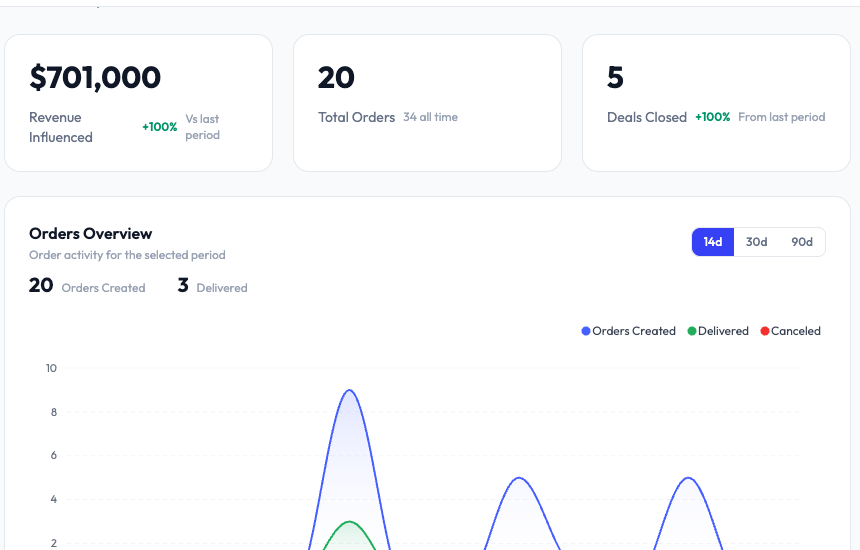
Your dashboard includes a Getting Started checklist that tracks these setup tasks. Each item checks off automatically as you complete it. You can dismiss the checklist once you are done.