Managing Form Submissions
When someone submits a sample request form, the submission appears in the Sample Requests inbox for your team to review, approve, and convert into orders.
Viewing submissions
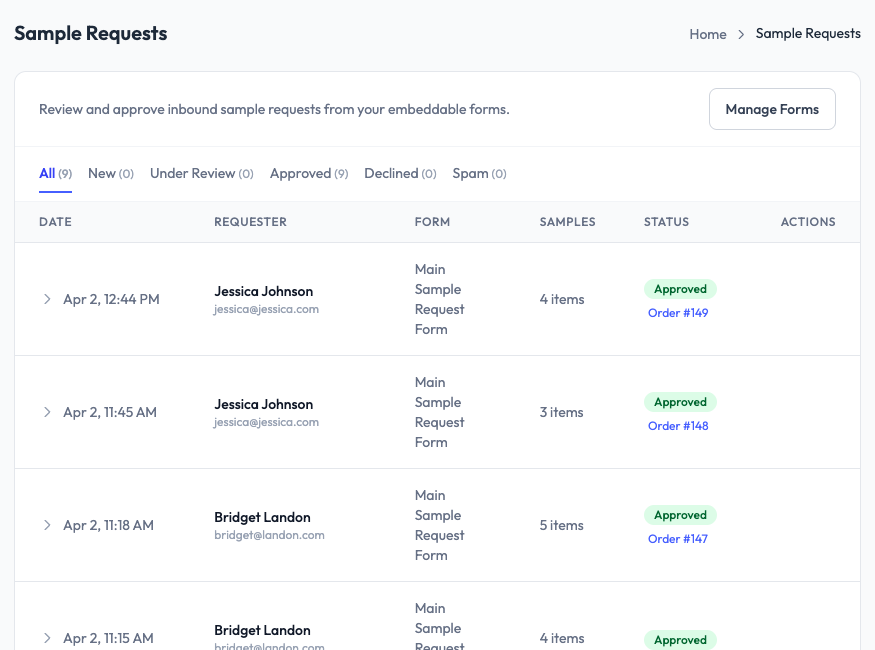
Go to Sample Requests in the sidebar. The inbox shows all incoming submissions with columns for date, requester name and email, which form was used, number of samples requested, approval status, and linked order number.
Filtering submissions
Use the status tabs at the top to filter by: All, New, Under Review, Approved, Declined, or Spam. Each tab shows a count so you can quickly see how many submissions need attention.
Reviewing a submission
Click the arrow next to any submission to expand its details: full requester information, the samples they requested, and any message they included. Review whether it is a legitimate request from a real prospect.
Approving a request
Click Approve to accept the request. Once approved, you can convert it directly into a sample order. The requester’s contact details and sample selections carry over to the order form, so you do not need to re-enter the information. The inbox shows the linked order number once the conversion is complete.
Declining a request
Click Decline to reject a request. You can optionally provide a reason. Declined requests remain in the inbox under the Declined tab for reference.
Spam
Mark submissions as Spam if they are not legitimate. This moves them to the Spam tab and helps you keep the inbox clean.