Managing Custom Field Definitions
Updated Apr 4, 2026
Sample Library
Custom field definitions control which metadata fields appear on every sample in your library. Only account owners can manage field definitions.
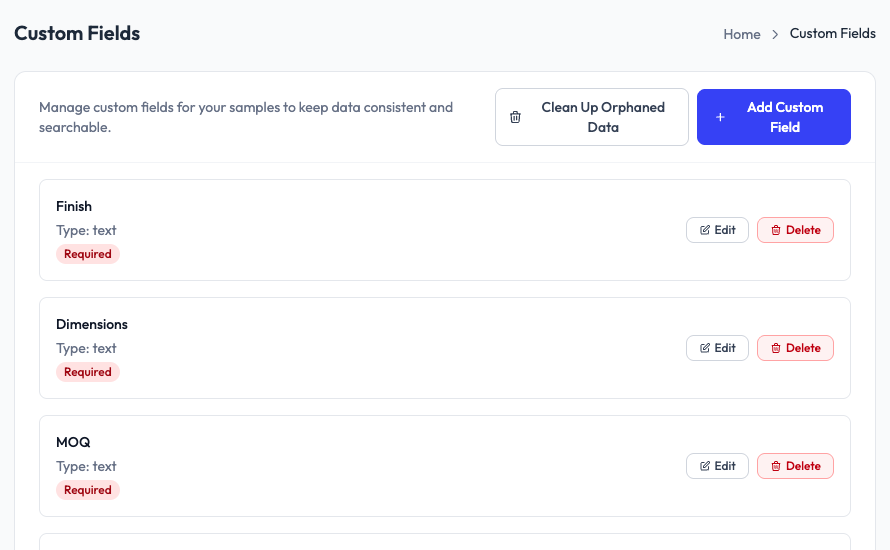
Creating a custom field
- Go to Samples > Custom Fields in the sidebar.
- Click Add Custom Field.
- Enter a field name (e.g., Finish, Dimensions, MOQ).
- Choose the field type: text, textarea, number, email, URL, date, select, radio, checkbox, or file upload.
- Set whether the field is required or optional.
- For select and radio types, add the list of options.
- Save the field.
Editing and deleting fields
Each field in the list has Edit and Delete buttons. Editing a field updates it across all existing samples. Deleting a field removes it from all samples, but data already entered in that field is preserved as orphaned data.
Cleaning up orphaned data
If you delete a field definition, the data previously entered under that field remains in the database. Use the Clean Up Orphaned Data button to permanently remove data from deleted fields.