Linking Deals to Orders
Linking a CRM deal to a sample order creates a direct connection between your sample activity and your sales pipeline. This is the foundation of revenue attribution in SampleHQ.
You can link deals from within your CRM (see the separate articles for Linking Deals from Salesforce and Linking Deals from HubSpot) or from within SampleHQ using the two methods below.
From the order detail page
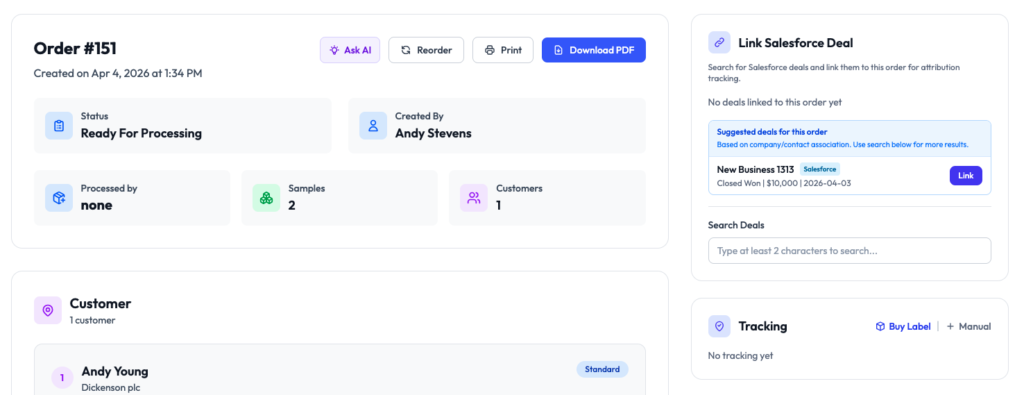
Open any order in SampleHQ and look at the deal linking section on the right side of the page. SampleHQ shows suggested deals based on company and contact association. Each suggestion shows the deal name, CRM source, status, value, and close date. Click Link to connect the deal to the order. You can also use the Search Deals field at the bottom to find a specific deal by name.
From the Unlinked Deals tab in Attribution
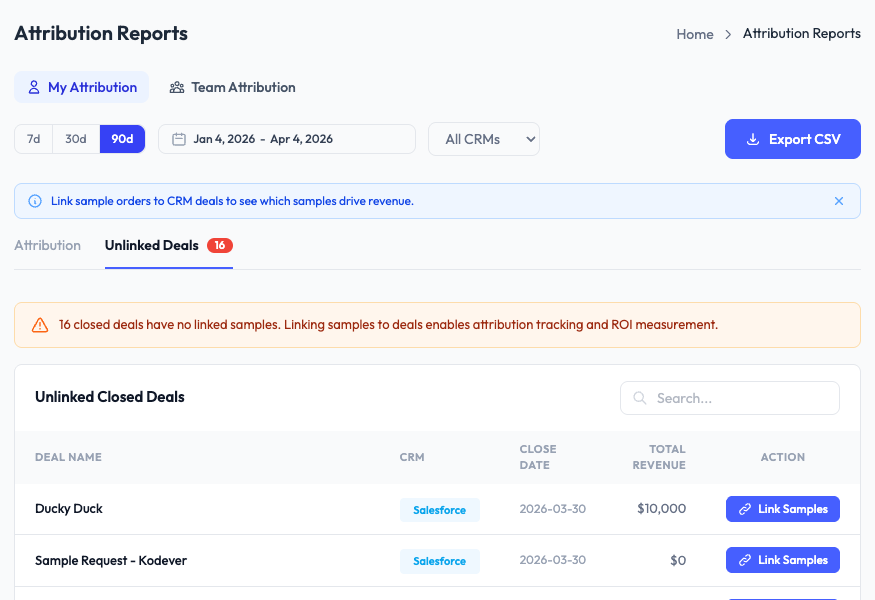
Go to Attribution Reports and click the Unlinked Deals tab. This shows all closed CRM deals that have no sample orders linked to them. For each deal, you can click Link Samples to associate it with the relevant sample orders.
Matching requirement
You can only link a sample order to a deal if they share at least one contact or company/account in common. SampleHQ uses this overlap to ensure links are meaningful and to power the suggested deals feature.
SKU-level detail
Deal links are stored with SKU-level detail. If you send 5 different samples for a deal, attribution reports can show the contribution of each individual sample, not just the order as a whole.
Viewing linked deals
Linked deals appear on the order detail page and in the All Orders table under the “Linked Opportunity” column. From the Attribution section, you can see all orders linked to a specific deal.