Linking Deals from Salesforce
If your workspace is connected to Salesforce, you can link sample orders to deals directly from within Salesforce without switching to SampleHQ.
Where to find it
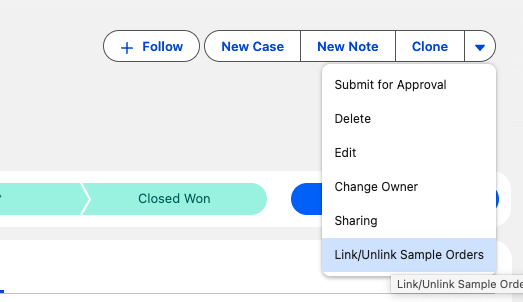
The linking tool is available on any individual opportunity record in Salesforce. Open the opportunity, click the dropdown arrow next to the action buttons (Follow, New Case, New Note, Clone), and select Link/Unlink Sample Orders.
How it works
- Open the Salesforce opportunity you want to link.
- Click the dropdown menu and select Link/Unlink Sample Orders.
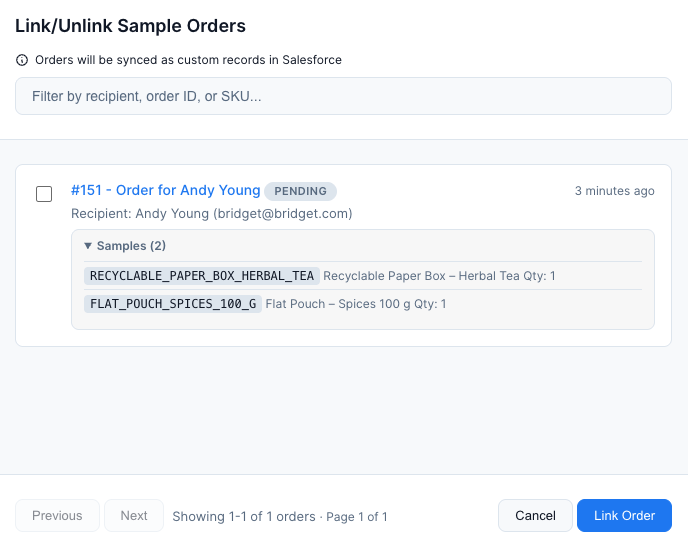
- The SampleHQ deal picker opens, showing sample orders that can be linked to this deal.
- Search for the order you want to link, or browse the list.
- Click Link to associate the sample order with this opportunity.
Unlinking
Use the same menu option to unlink a sample order from a deal if it was linked by mistake.
Matching requirement
You can only link a sample order to a deal if they share at least one contact or company/account in common. SampleHQ uses this overlap to ensure links are meaningful and to power the suggested deals feature.
Requirements
This feature requires an active Salesforce connection in SampleHQ. The Link/Unlink Sample Orders option appears automatically on opportunity records after the connection is set up.