Connecting Salesforce
Connect your Salesforce account to SampleHQ for deal linking, contact search, and attribution tracking from your Salesforce pipeline.
How to connect
- Go to Workspace Settings > CRM Settings.
- Click Connect Salesforce.
- You will be redirected to Salesforce to authorize the connection via OAuth.
- Grant the requested permissions.
- You are redirected back to SampleHQ with the connection active.
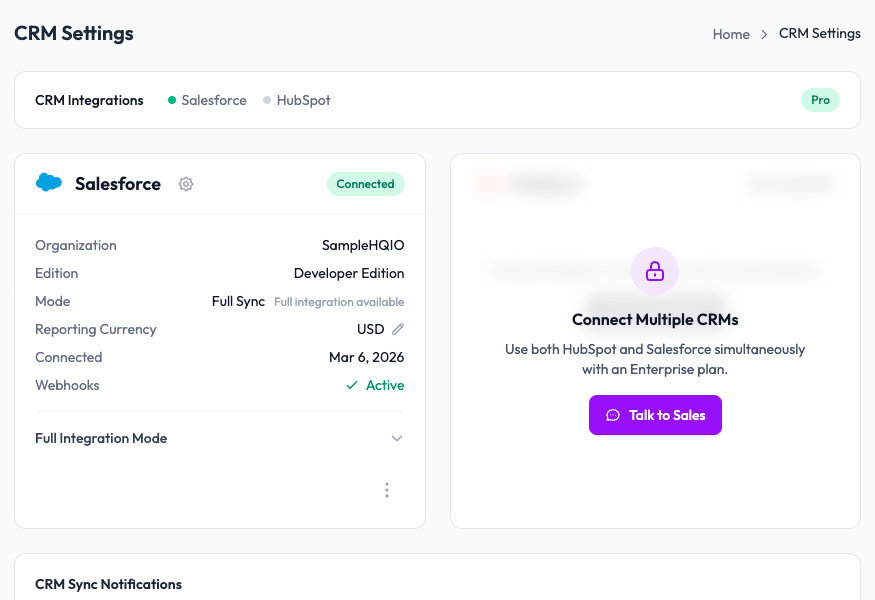
What you see after connecting
Once connected, the CRM Settings page shows your Salesforce organization details: organization name, edition, integration mode, reporting currency, connection date, and webhook status. Webhooks activate automatically to keep deal and contact data in sync.
Metadata deployment
SampleHQ automatically deploys custom fields and objects to your Salesforce org during setup. This is handled through an async process. SampleHQ probes your org’s capabilities to ensure everything is compatible before deploying.
What syncs
- Deals/Opportunities: Search and link Salesforce opportunities to sample orders.
- Contacts/Accounts: Look up Salesforce contacts when creating orders.
- Field mappings: Custom fields map sample data to your Salesforce records.
Plan requirements
Salesforce integration is available on Pro (one CRM connection) and Enterprise (unlimited connections) plans. Starter plans have read-only CRM access with limited search.