Adding a New User
Updated Apr 4, 2026
Users and Roles
Owners and managers can invite new team members to SampleHQ. Each new user receives an email invitation to join the workspace.
How to add a user
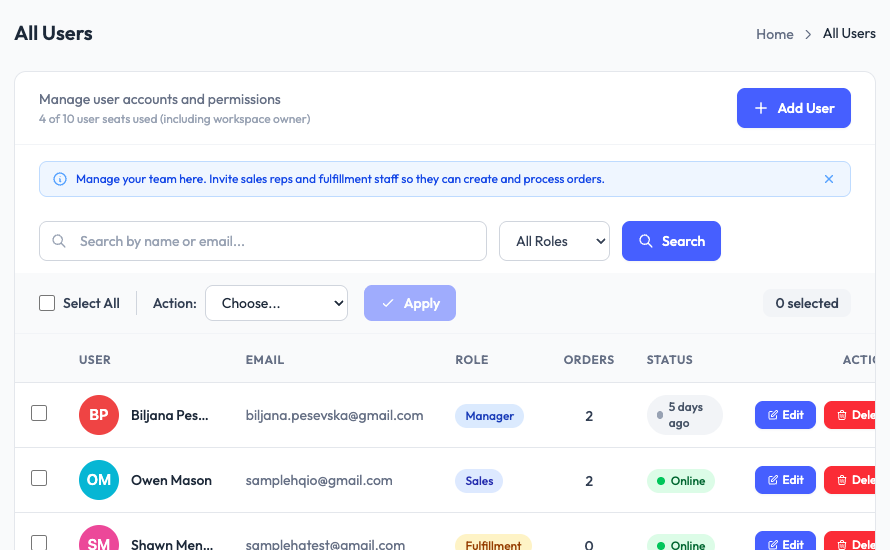
- Go to User Management > All Users in the sidebar.
- Click the Add User button in the top right.
- Enter the new user’s email address and name.
- Assign a role: Manager, Sales, or Fulfillment.
- Click Save to send the invitation.
What the new user receives
The invited user receives an email with instructions to set up their account. Once they log in, they see a Getting Started checklist tailored to their role.
Plan limits
The number of users you can add depends on your plan. Your current usage is shown in Account Settings > Plan. If you reach your limit, you will need to upgrade before adding more users.
Bulk upload
If you need to add many users at once, you can bulk import them using a CSV file instead of adding them one at a time. See Bulk Import Overview for details.