Adding a New Sample
Updated Apr 4, 2026
Sample Library
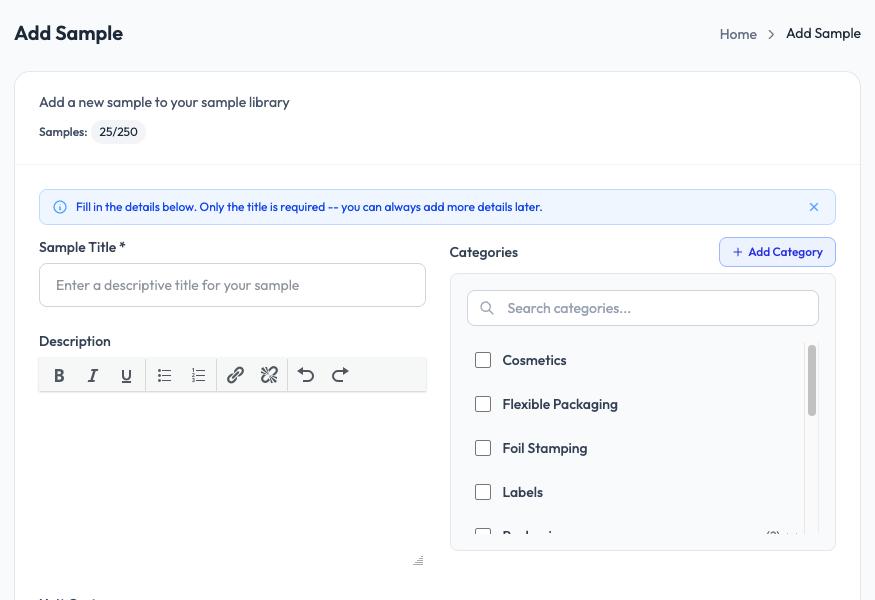
Owners and managers can add new samples to the library. Each sample needs at minimum a title. You can always add more details later.
How to add a sample
- Go to Samples > Add Sample in the sidebar.
- Enter the Sample Title (required).
- Add a description using the rich text editor. You can format text with bold, italic, underline, and lists.
- Select one or more Categories from the list on the right. You can also create a new category inline by clicking + Add Category.
- Scroll down to upload a product image.
- Fill in any custom fields that have been set up for your workspace.
- Click Save.
Plan limits
The number of samples you can add depends on your plan. Your current sample count is shown at the top of the Add Sample page (e.g., 25/250). Check Account Settings > Plan if you need to see your full usage.
Bulk upload
If you have many samples to add, you can bulk import them using a CSV file instead of adding them one at a time. See Bulk Import Overview for details on preparing your CSV and running the import.