This tutorial shows you how to invite team members to your SampleHQ workspace and assign the right roles. Before starting, make sure you have Owner or Manager access to the user management area.
-
Access User Management
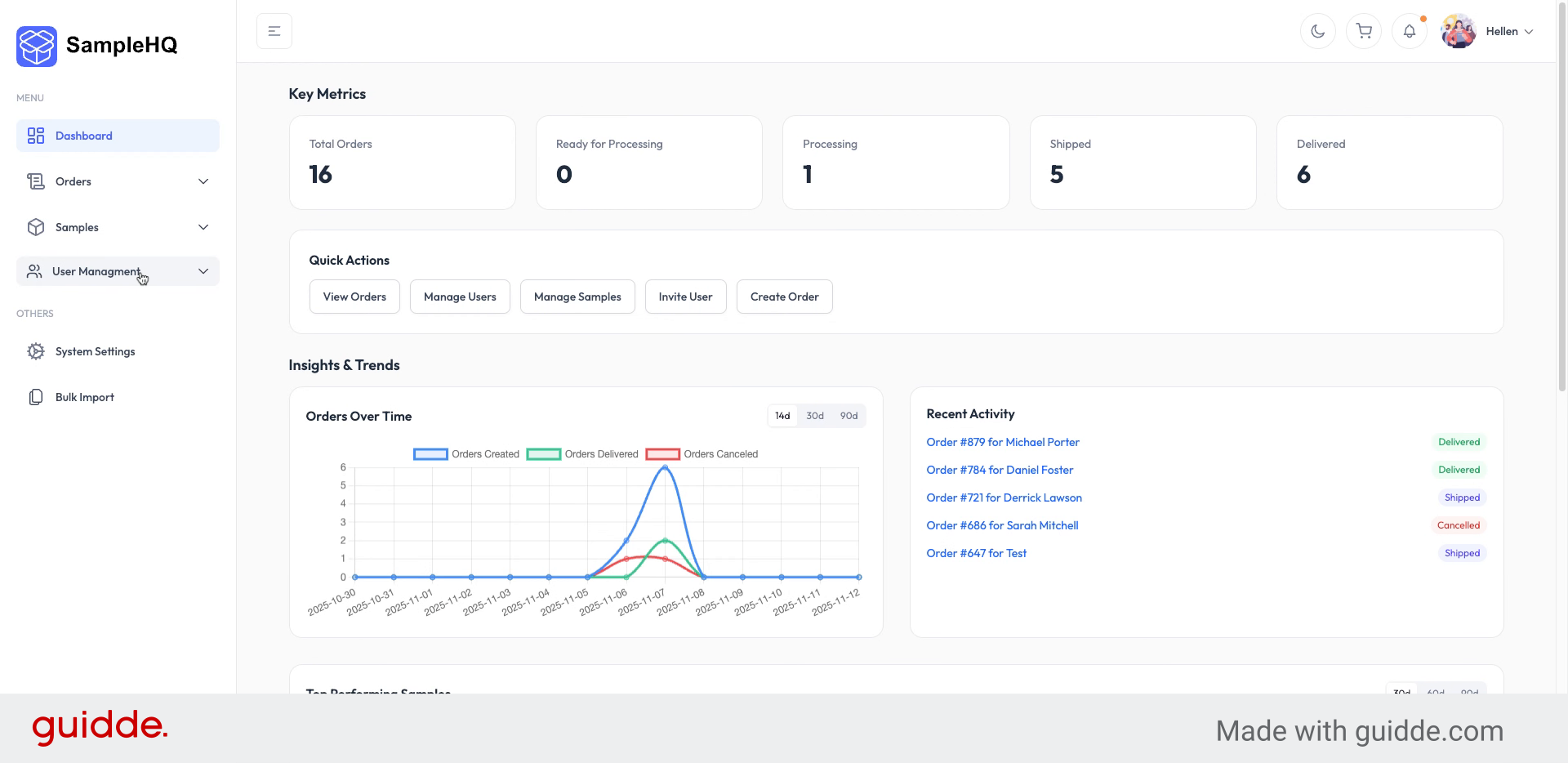
If you are an owner or a manager, you can invite new users by going to User Management in the left-hand menu and clicking Add New User.
-
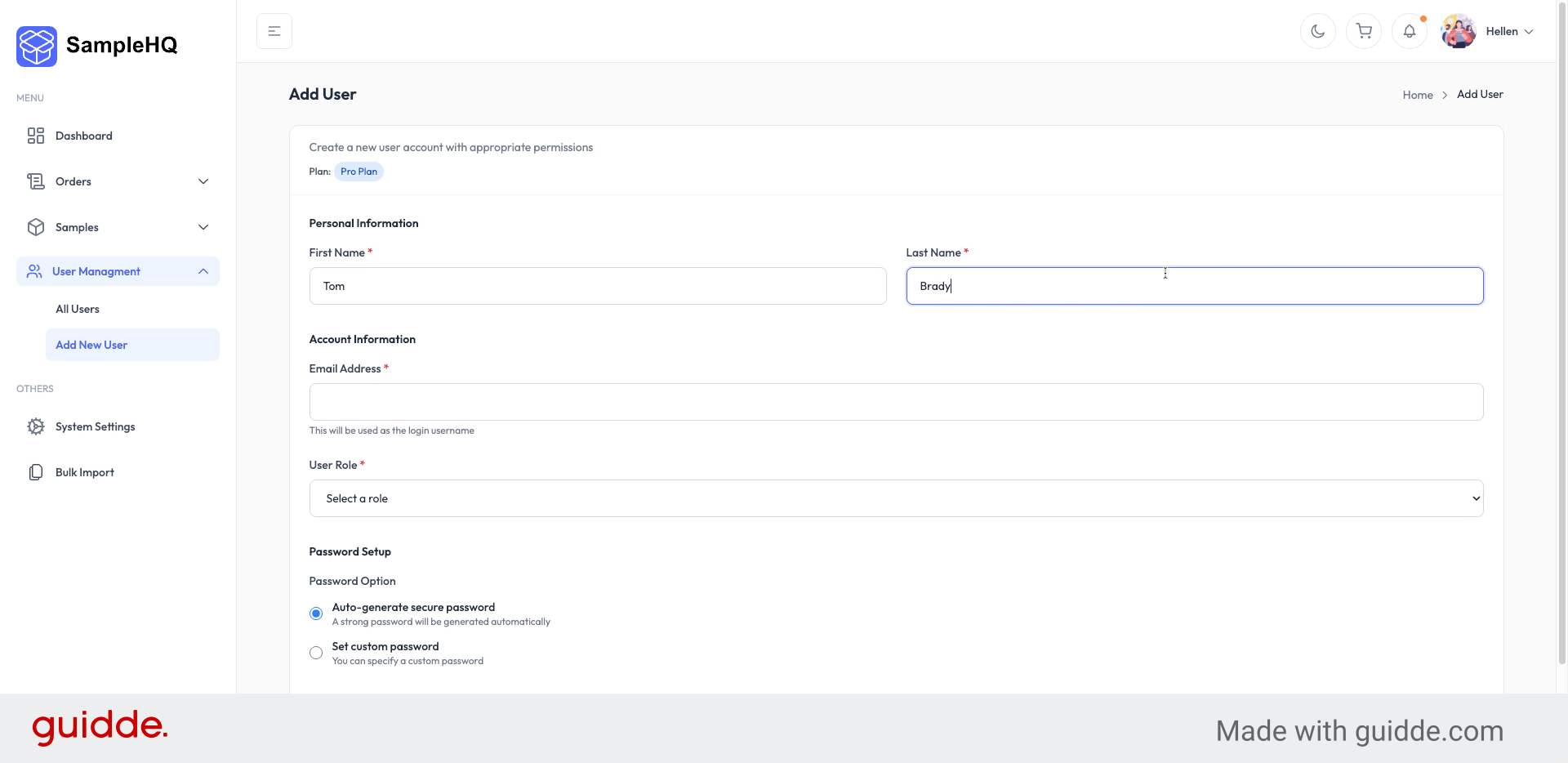
Provide User Information
Enter the new user’s first name, last name, and email address. Make sure the email is correct so they can receive their invite.
-
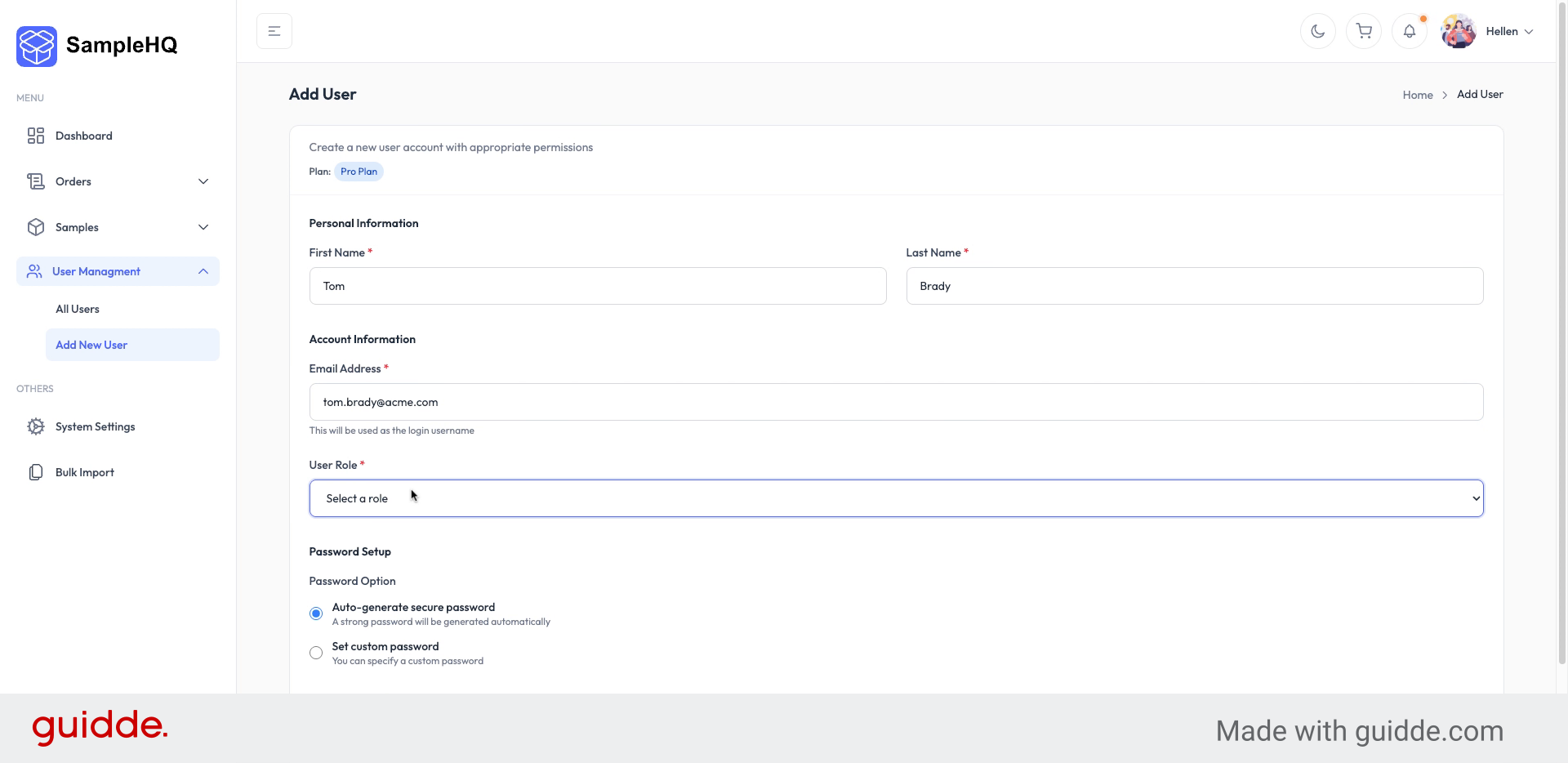
Select User Role
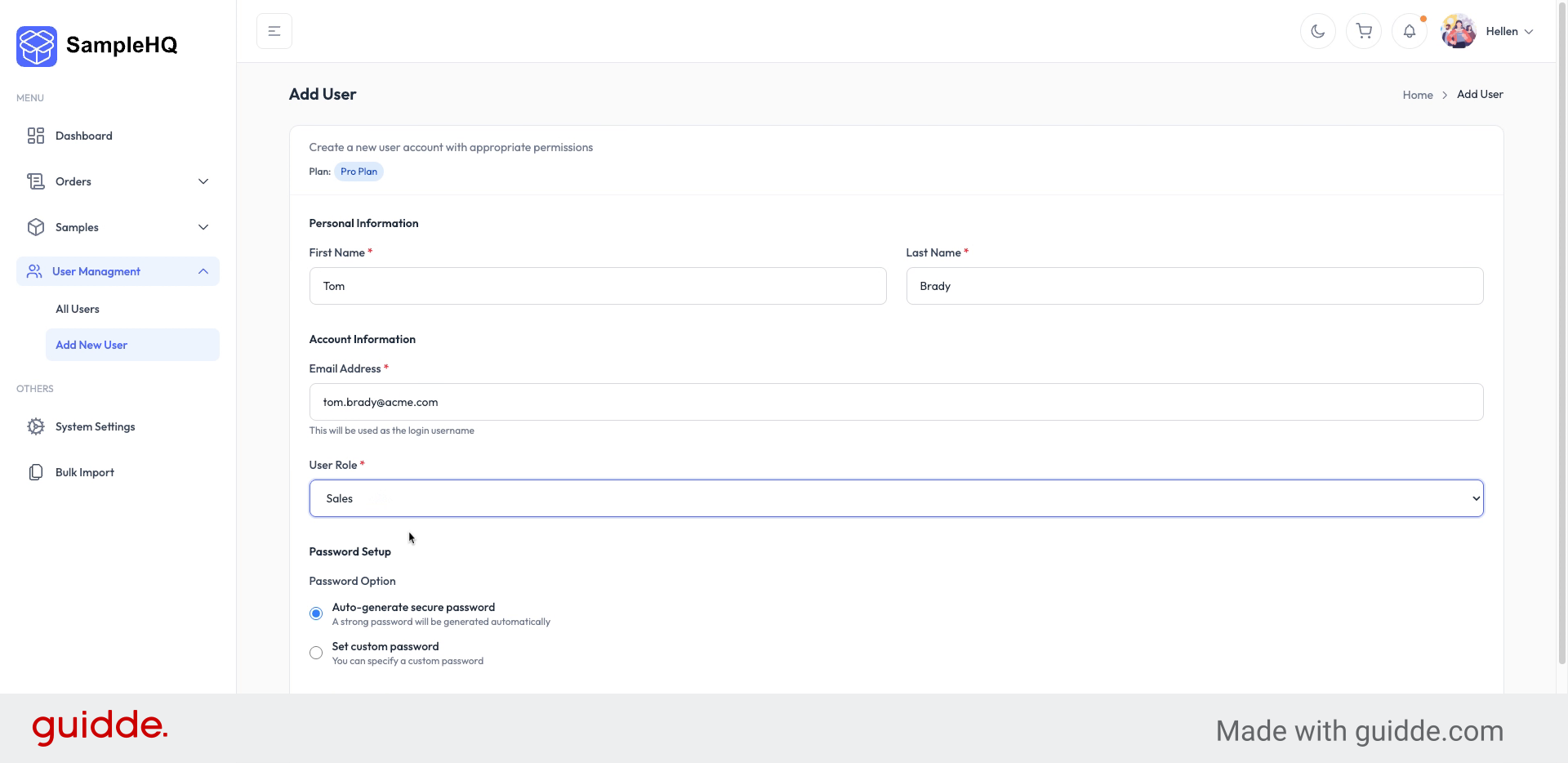
Choose the appropriate role for the new user — for example Sales, Manager, or Fulfillment. Roles determine what the user can see and do inside SampleHQ.
-
Define Additional Details & Invite
For a sales user, define the remaining details such as how their password will be set and whether to send them a welcome email. When everything looks good, click Create user to send the invite.
You have successfully invited new team members by entering their details, assigning roles, and managing user settings. Once they accept their invitation, they can start working in your SampleHQ workspace.


