This tutorial explains how the Fulfillment user processes the order, updates the order status, and adds tracking information to ensure smooth sample delivery processing.
-
1. Introduction
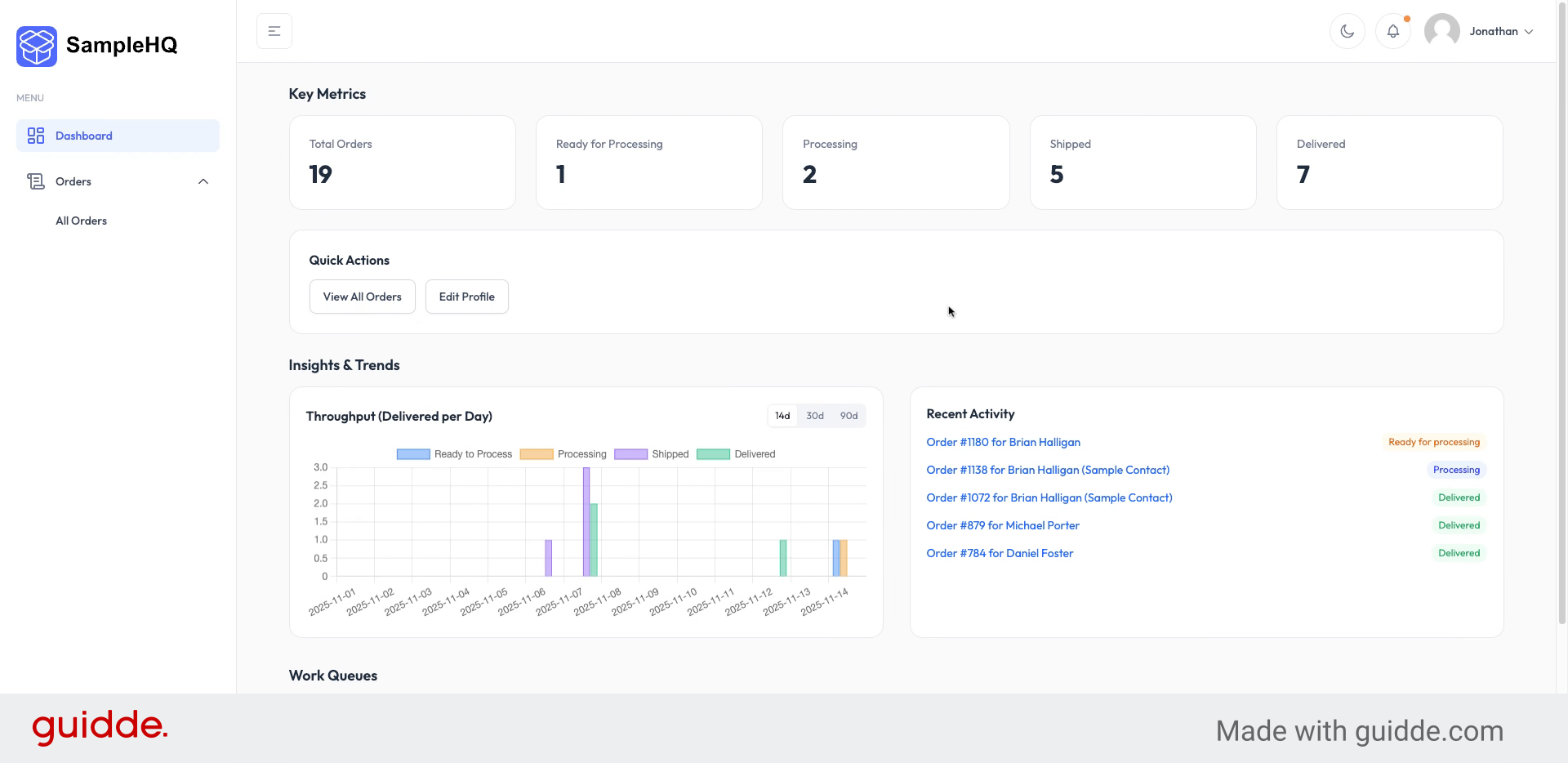
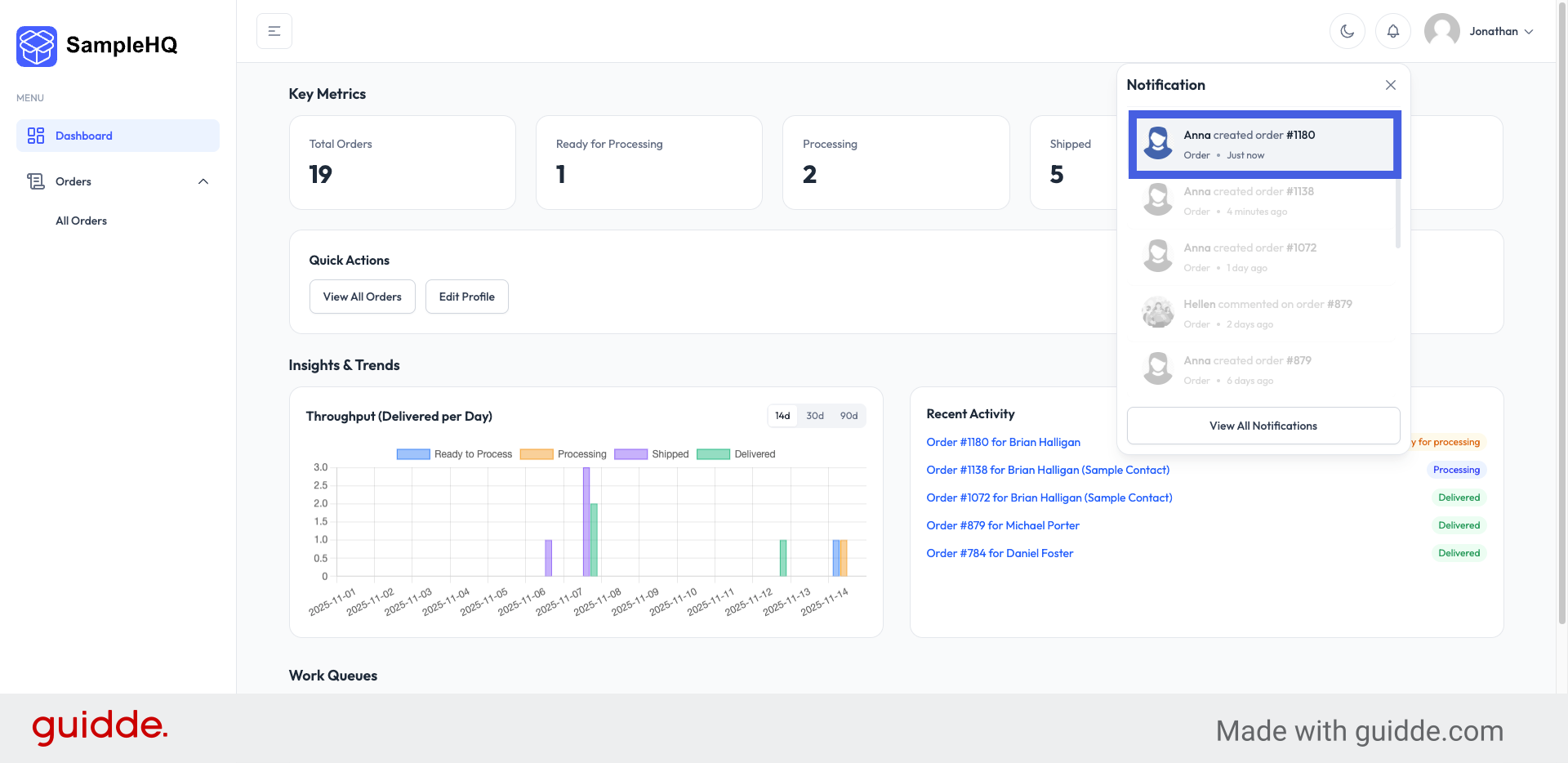
When the sales user submits a new sample order, the Fulfillment user will be notified by two means: first, by email, and second, the user will see an in-app notification that an order was created.
-
2. Select Created Order
To open and view the details of the newly created order, click the notification.
-
3. Access Order Options
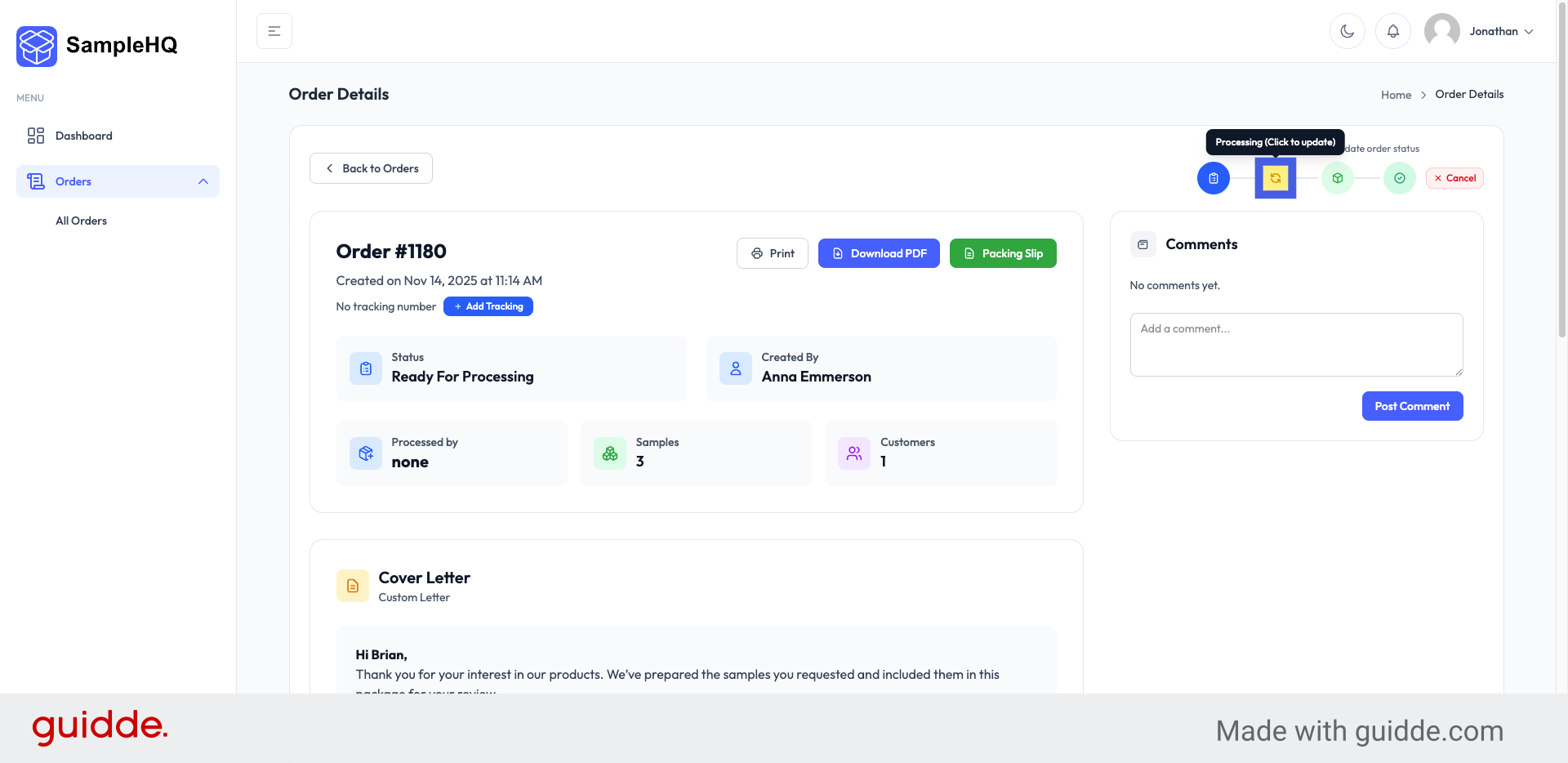
When the fulfillment user begins working on the order, they should update the status to Processing so the rest of the team stays informed.
-
4. Open Packing Slip
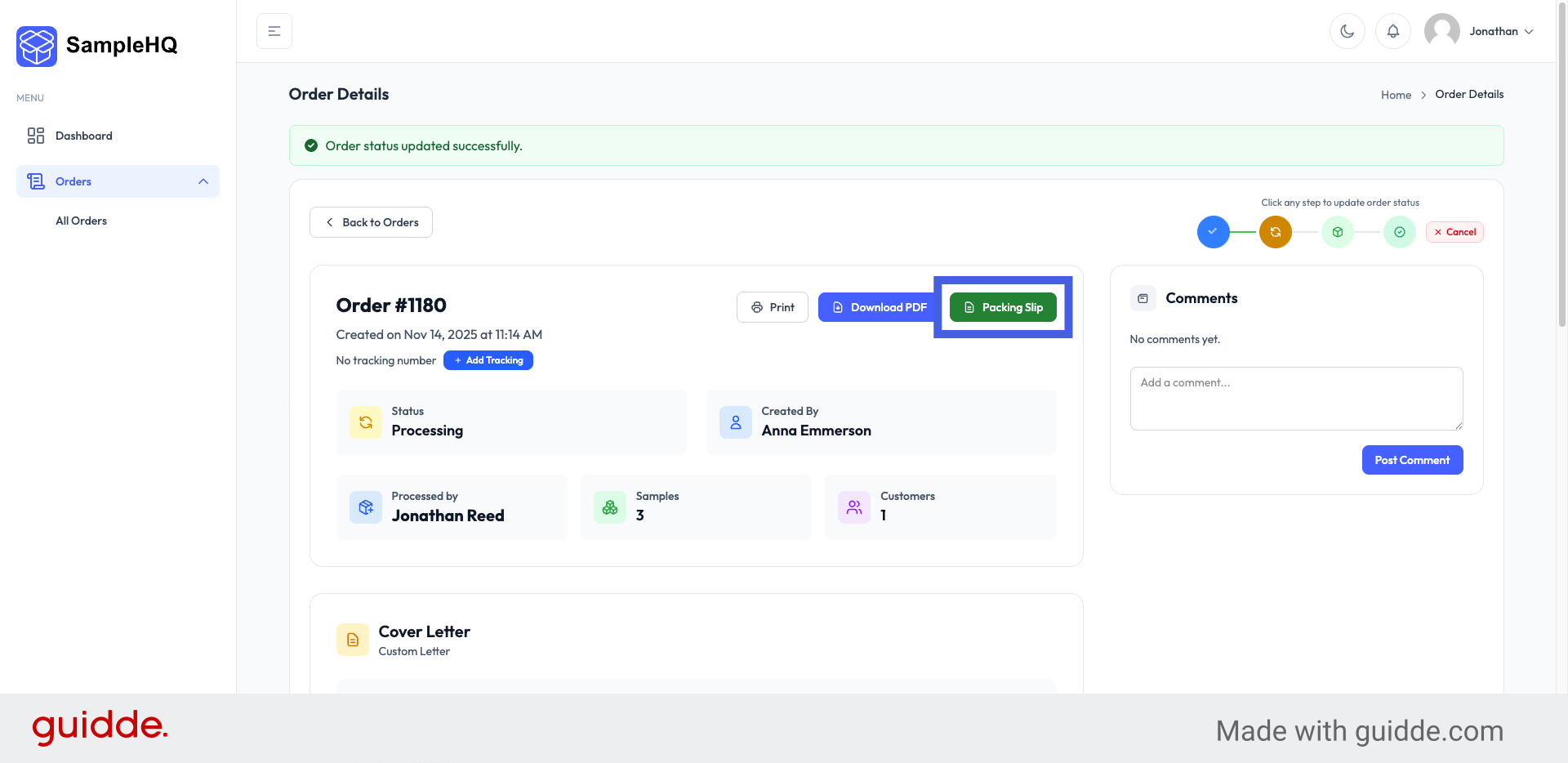
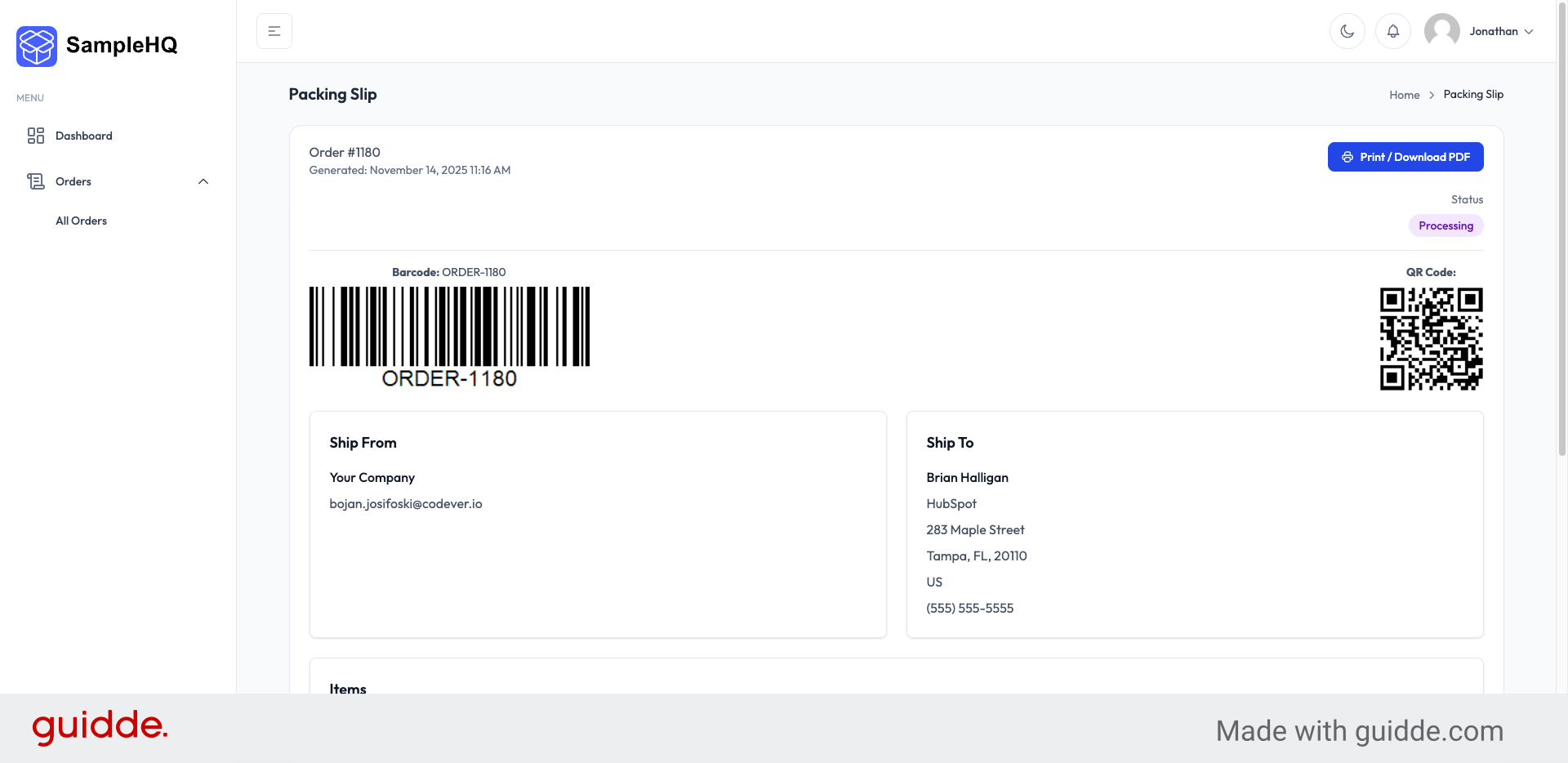
When the samples are ready, the fulfillment user generates a packing slip by clicking the “Packing Slip” button.
-
5. Print Or Download Packing Slip
This is the packing slip for the order. Fulfillment can print it and include it in the package. Before shipping, they can scan the QR code or barcode to quickly open the order and mark it as Shipped.
-
6. Change Order Status
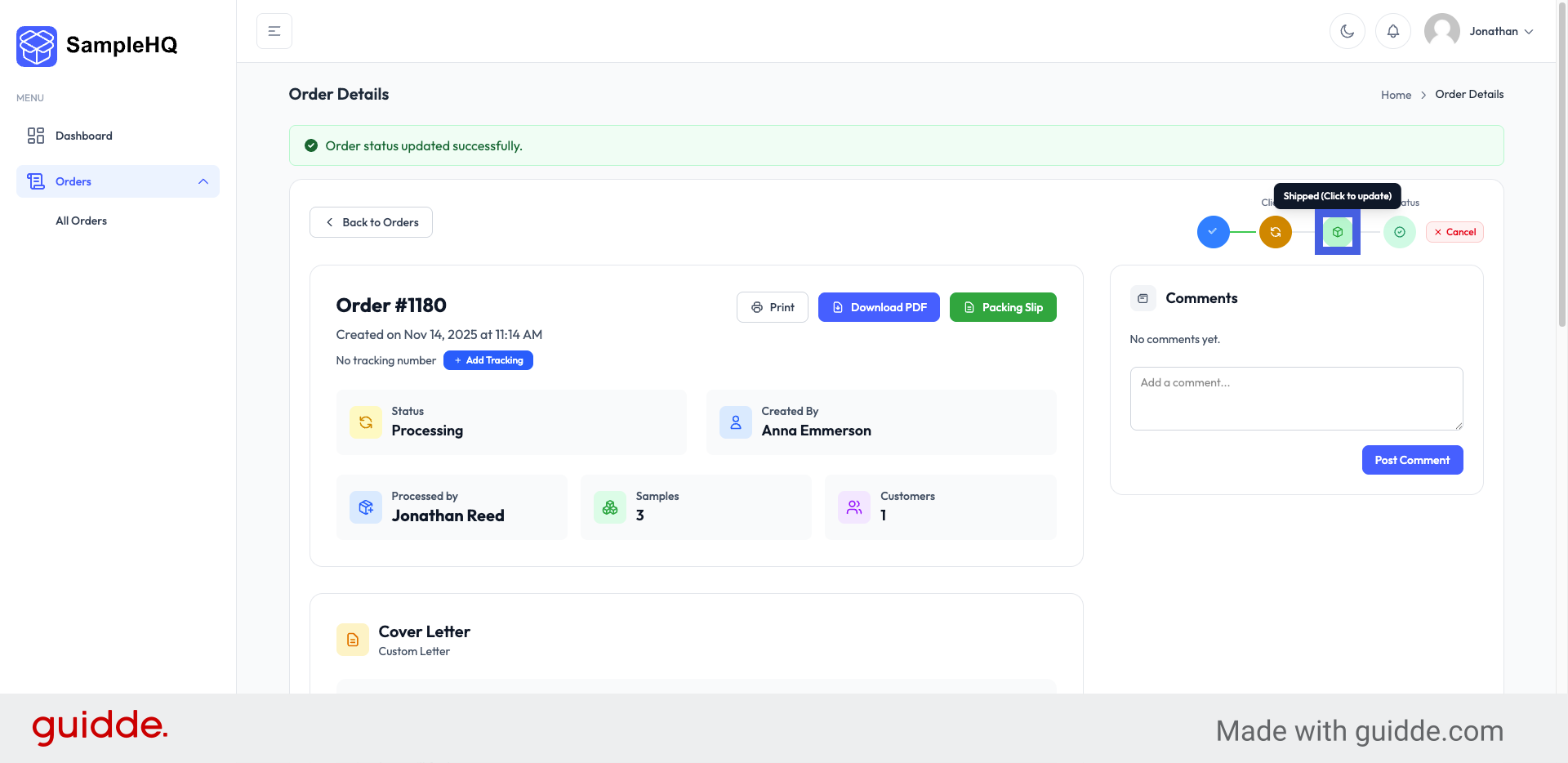
They can also update the status manually by opening SampleHQ, finding the order, and marking it as Shipped.
-
7. Add Tracking Information
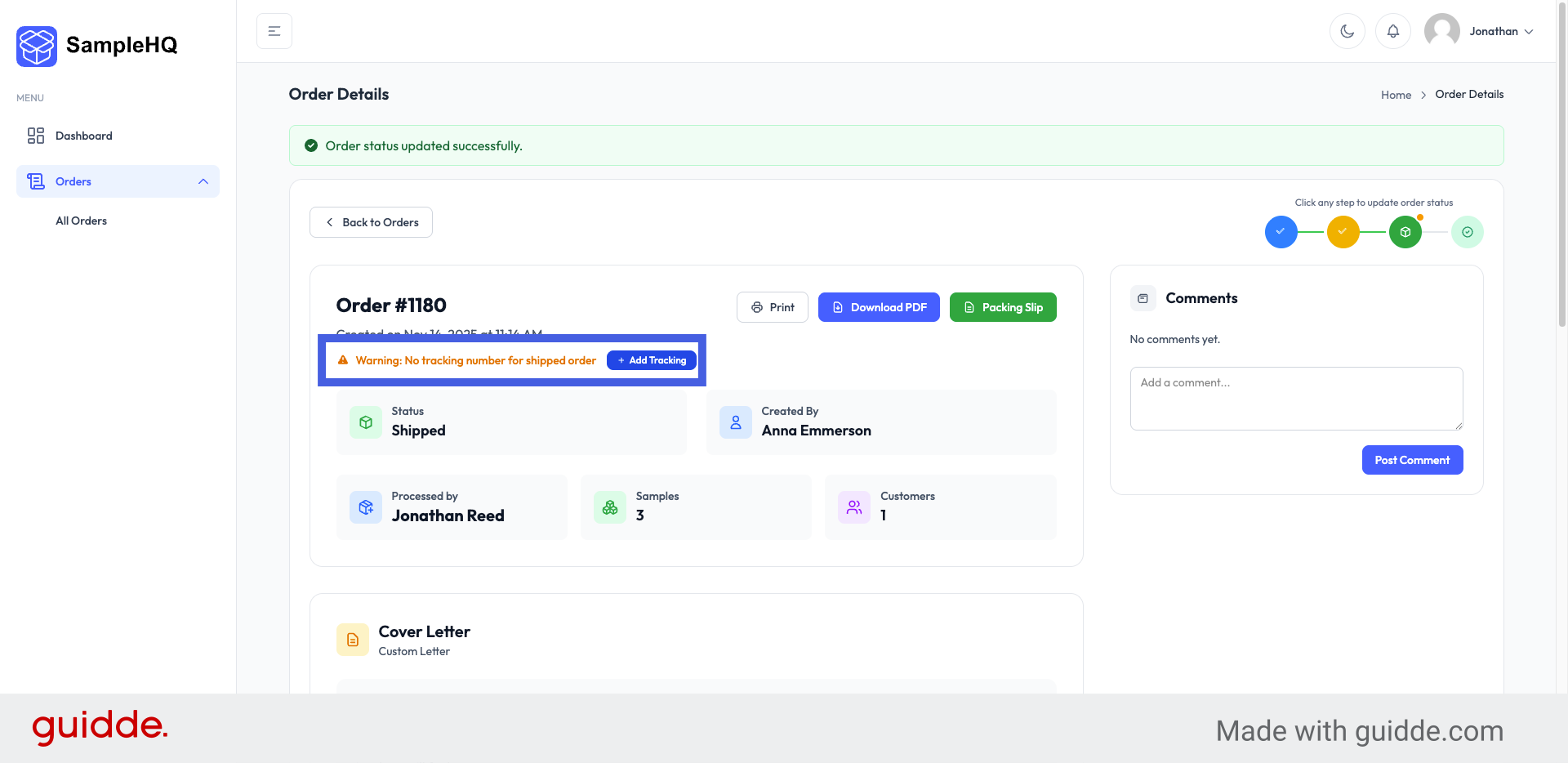
When the order is marked as shipped, fulfillment will be prompted to add a tracking number.
-
8. Enter Tracking Number
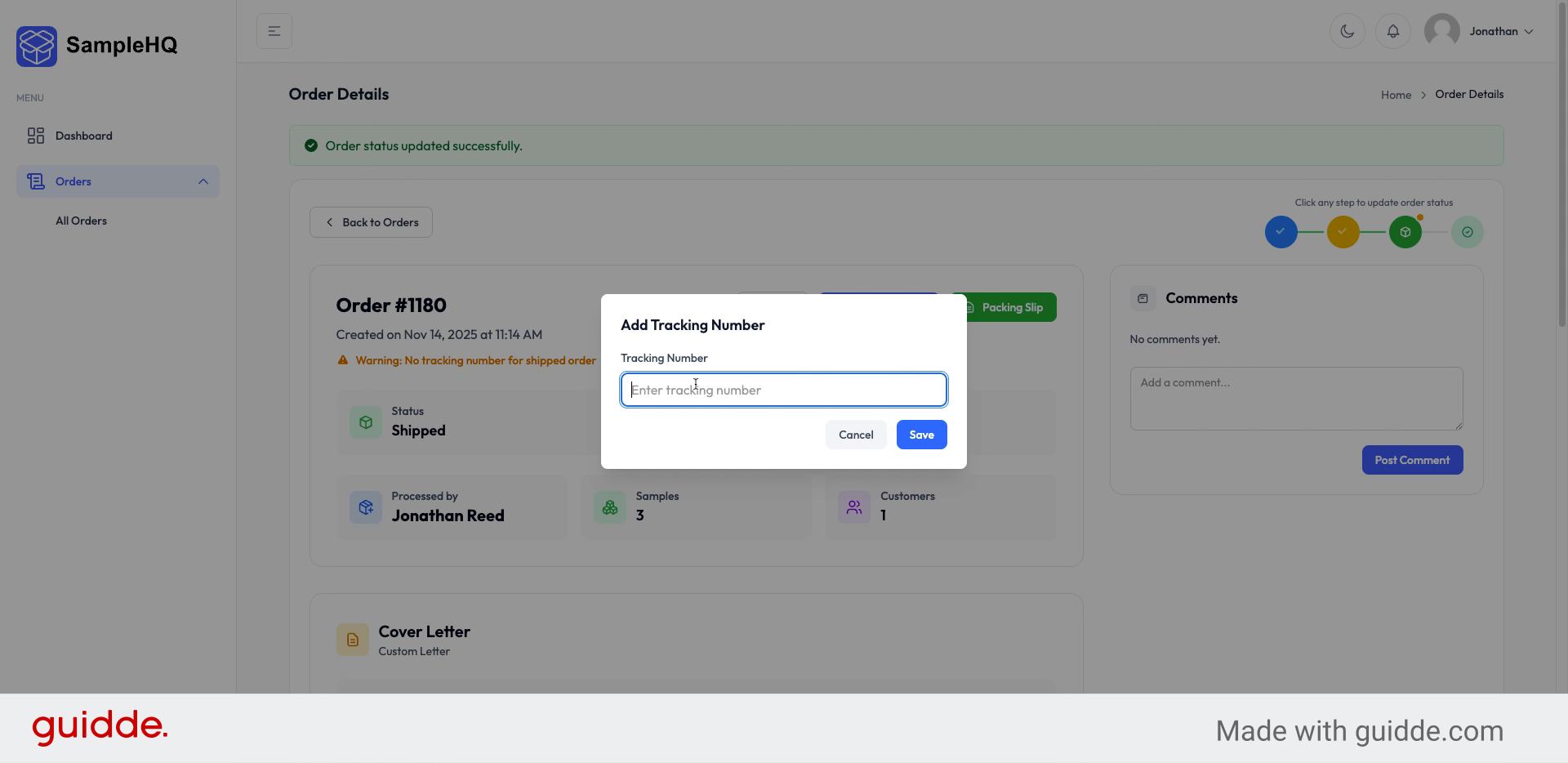
When the tracking number is added, the salesperson who created the order will be notified.
-
9. Select Multiple Orders to Update
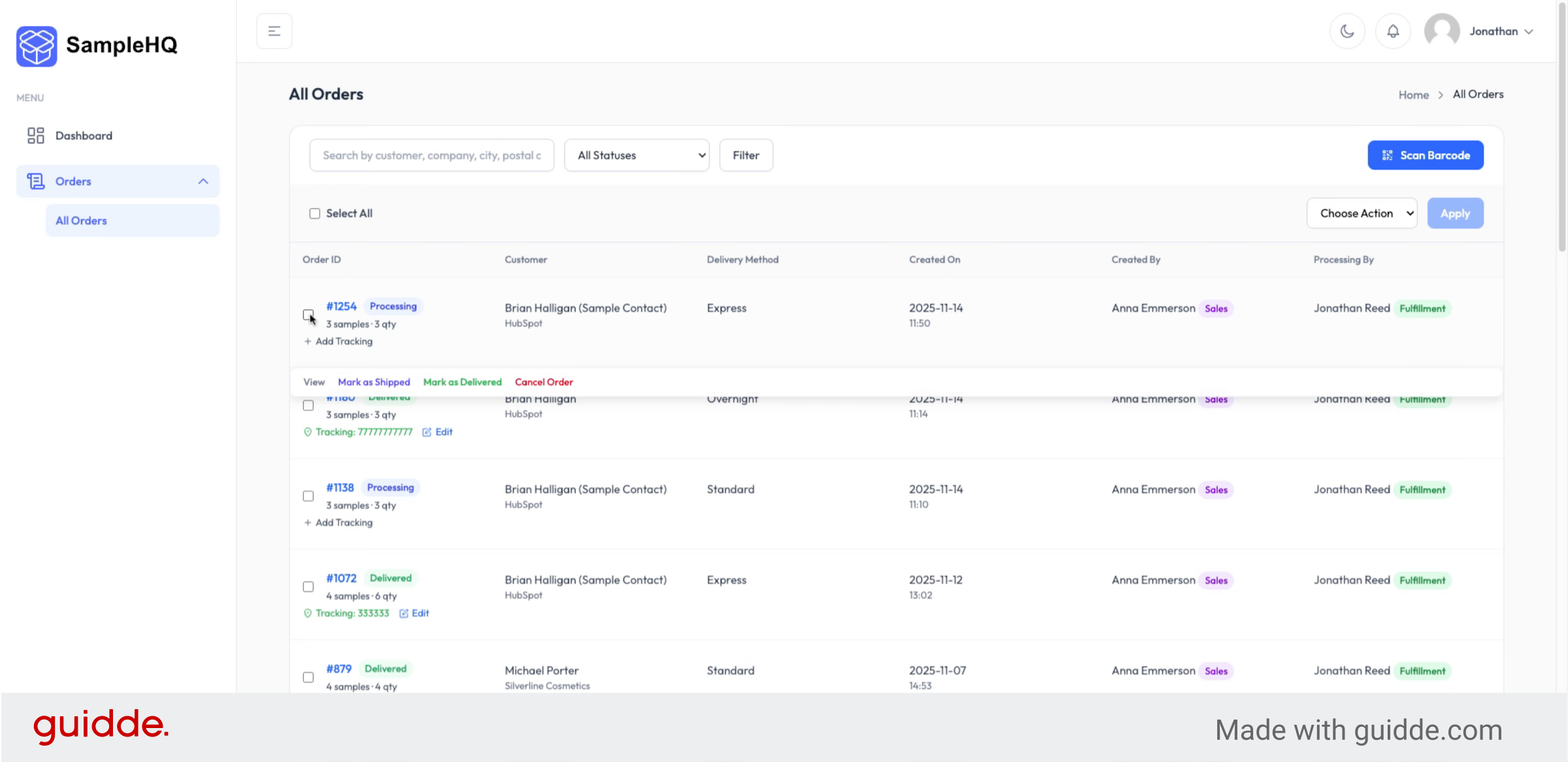
If there are multiple orders for which the Fulfillment user wants to update the tracking numbers, they can do so in All Orders. First, they select the orders, and from the Choose Action menu choose Update Tracking Number.
-
10. Add Multiple Tracking Numbers
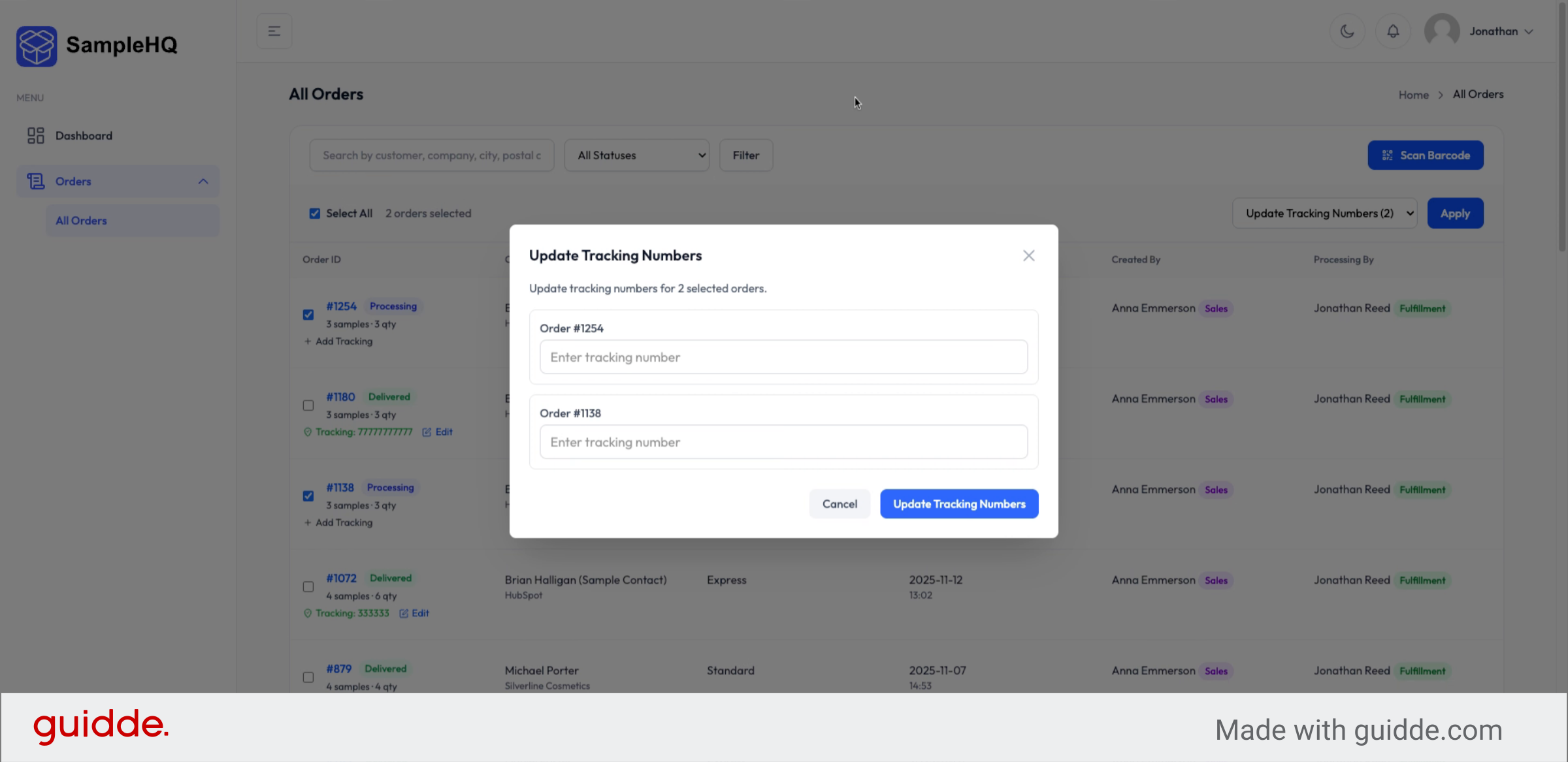
And then the user can add multiple tracking numbers at once for each order.
-
11. Finalize Order Update
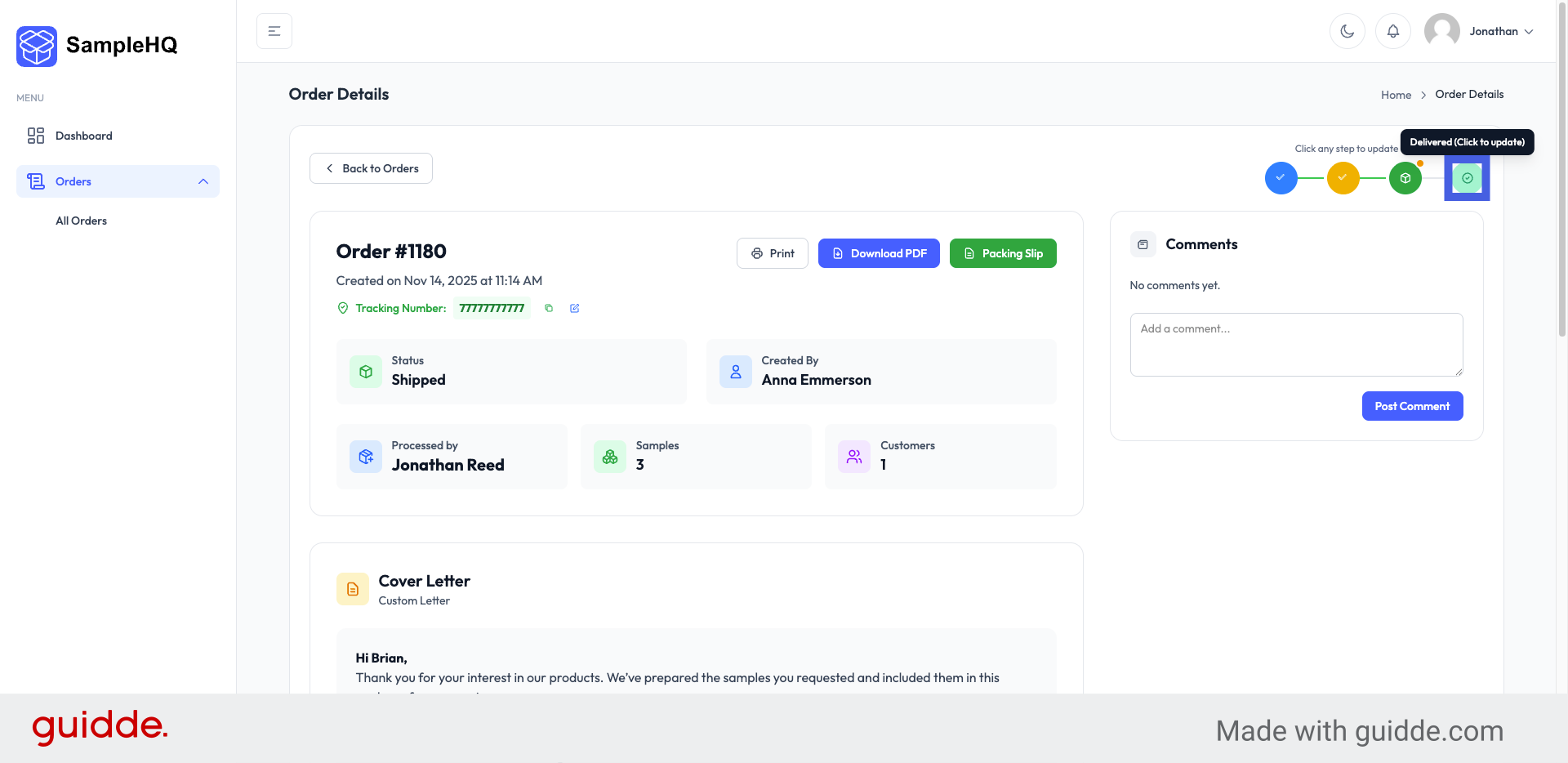
When you know the package has been delivered to the customer, make sure to update the order status from Shipped to Delivered. This marks the sample order as complete in SampleHQ.
This tutorial guided you through sample order processing, updating the order status, and adding tracking information in SampleHQ.


