This tutorial explains how to bulk import users into SampleHQ.
-
1. Understand User Addition Methods
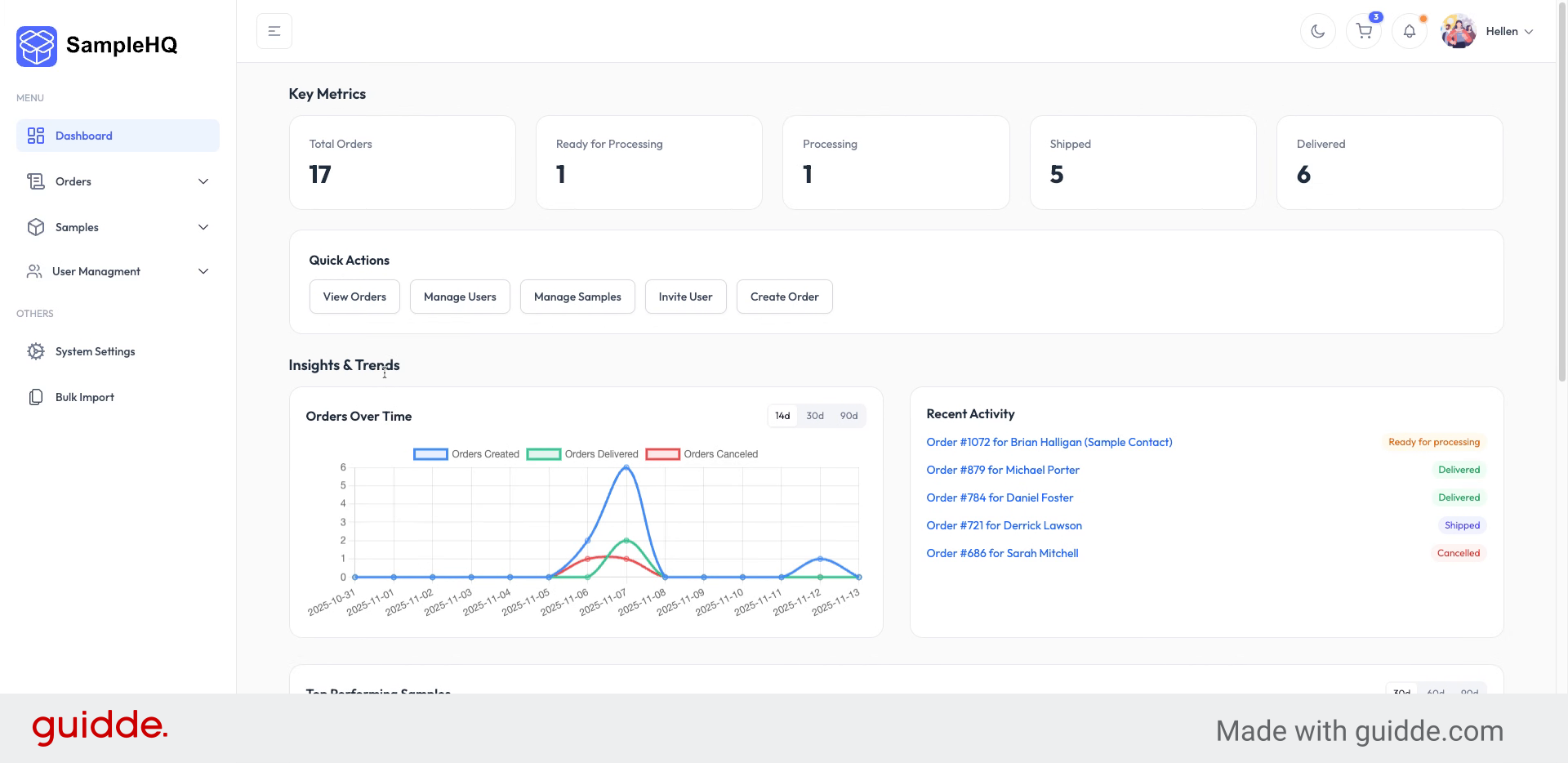
There are two ways to add users to Sample HQ. First, you can manually add users one by one by clicking Add New User in the User Management menu.
-
2. Access Bulk Import Section
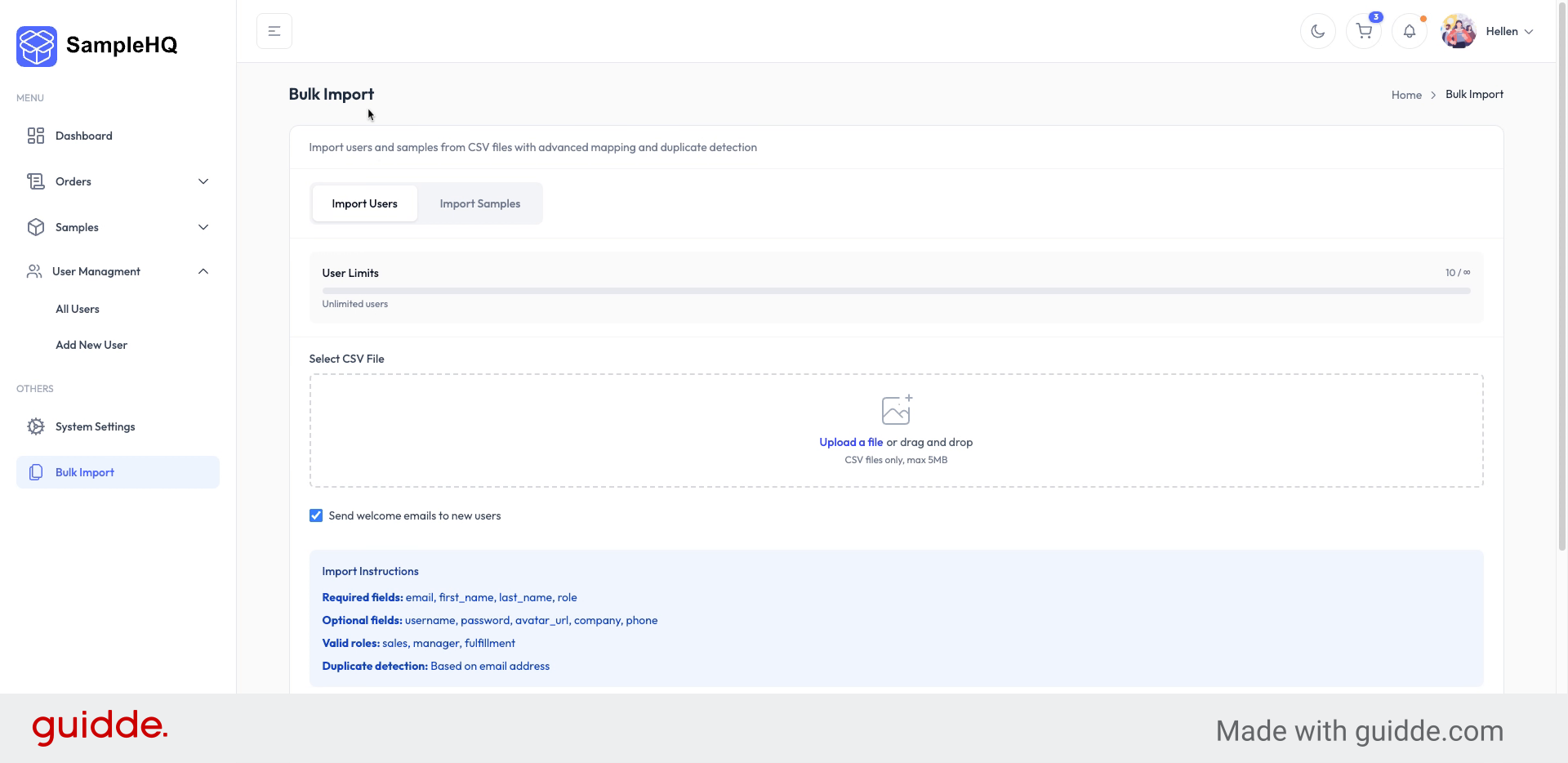
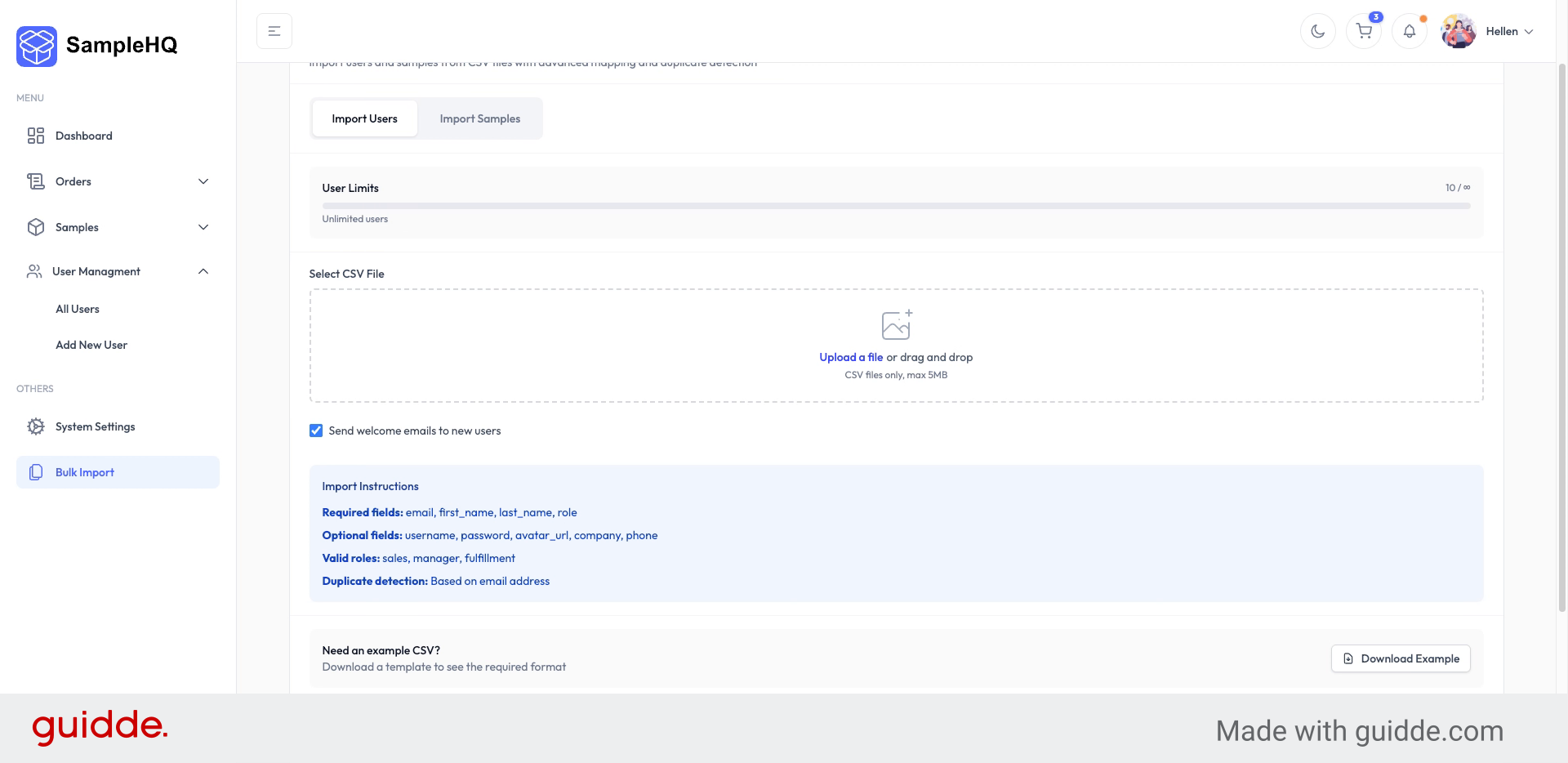
The other way is to use the bulk import option to add multiple users at once.
-
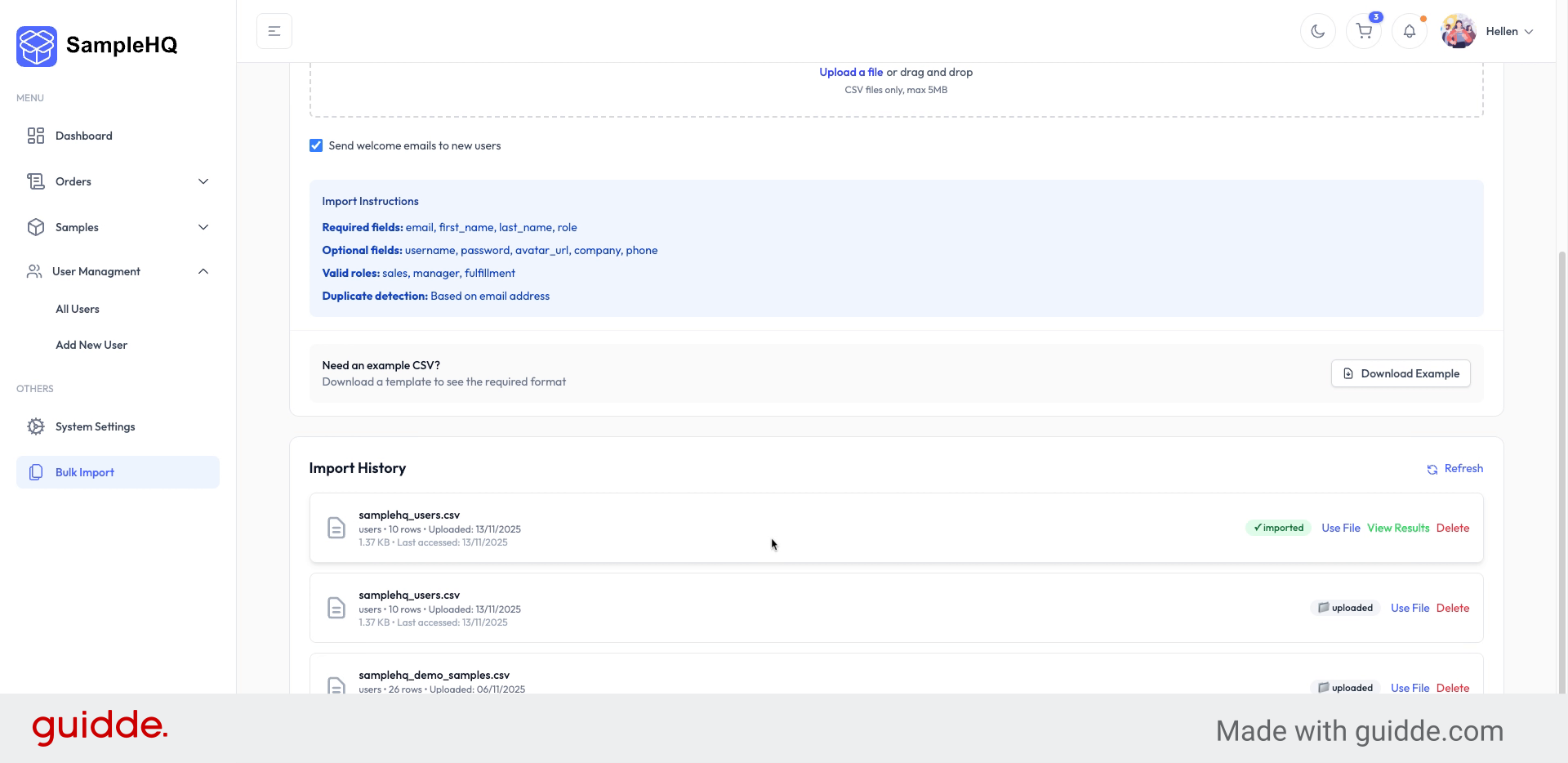
3. Download Example CSV File
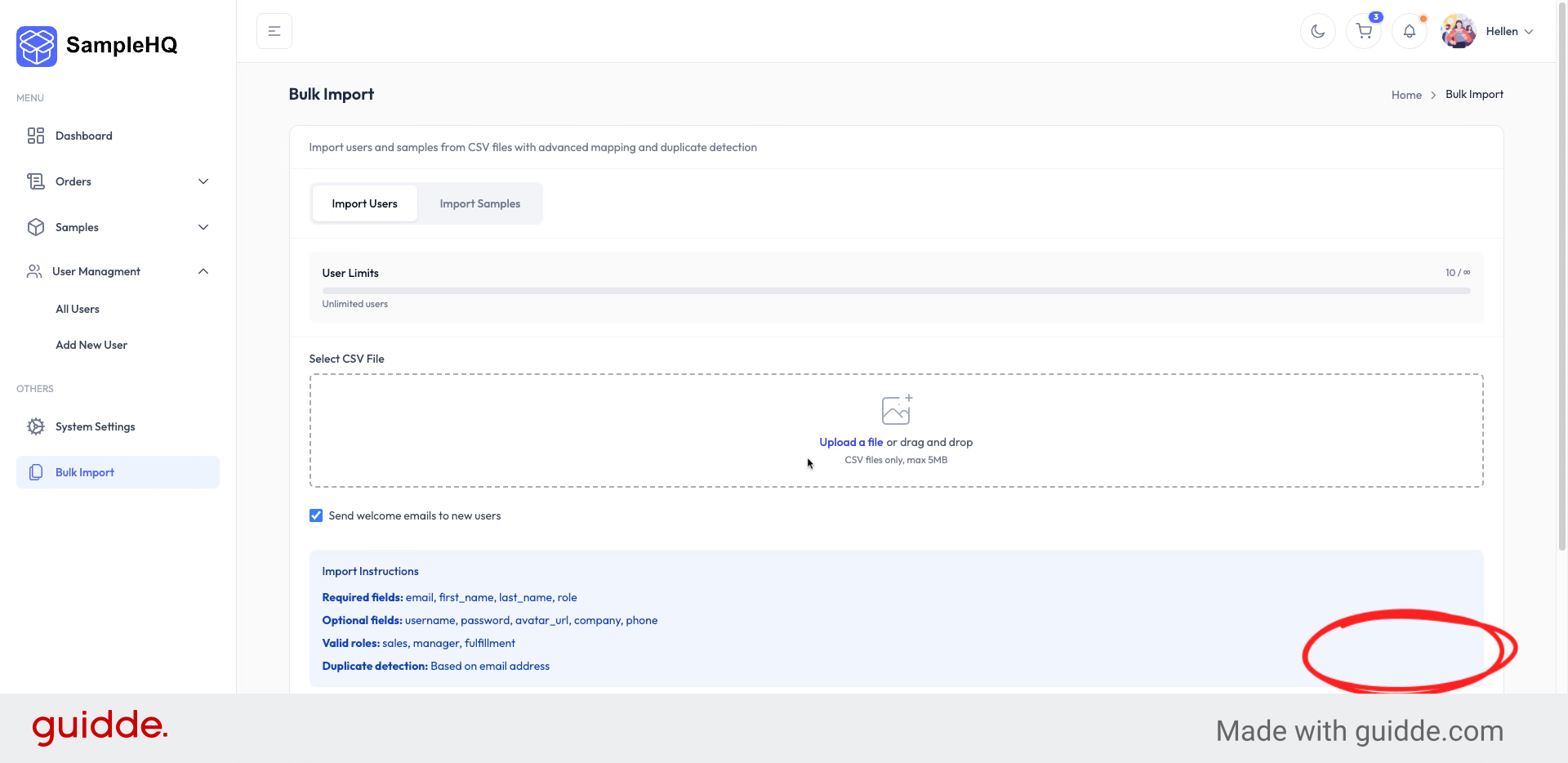
First, download the example CSV file and use it to enter your user information.
-
4. Upload Your CSV File
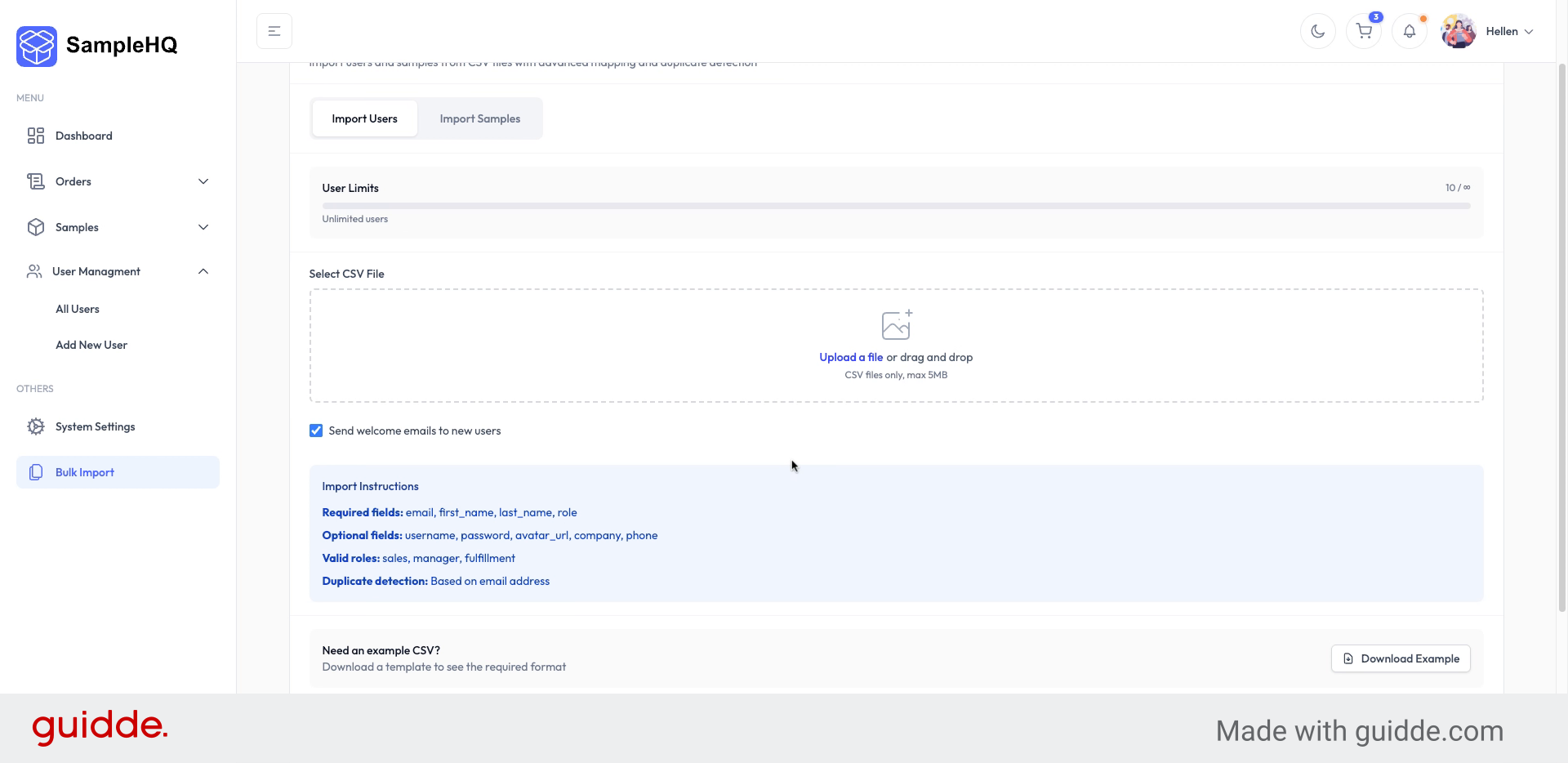
When you have your CSV file ready, click the upload file button to begin importing your users.
-
5. Select CSV File to Upload
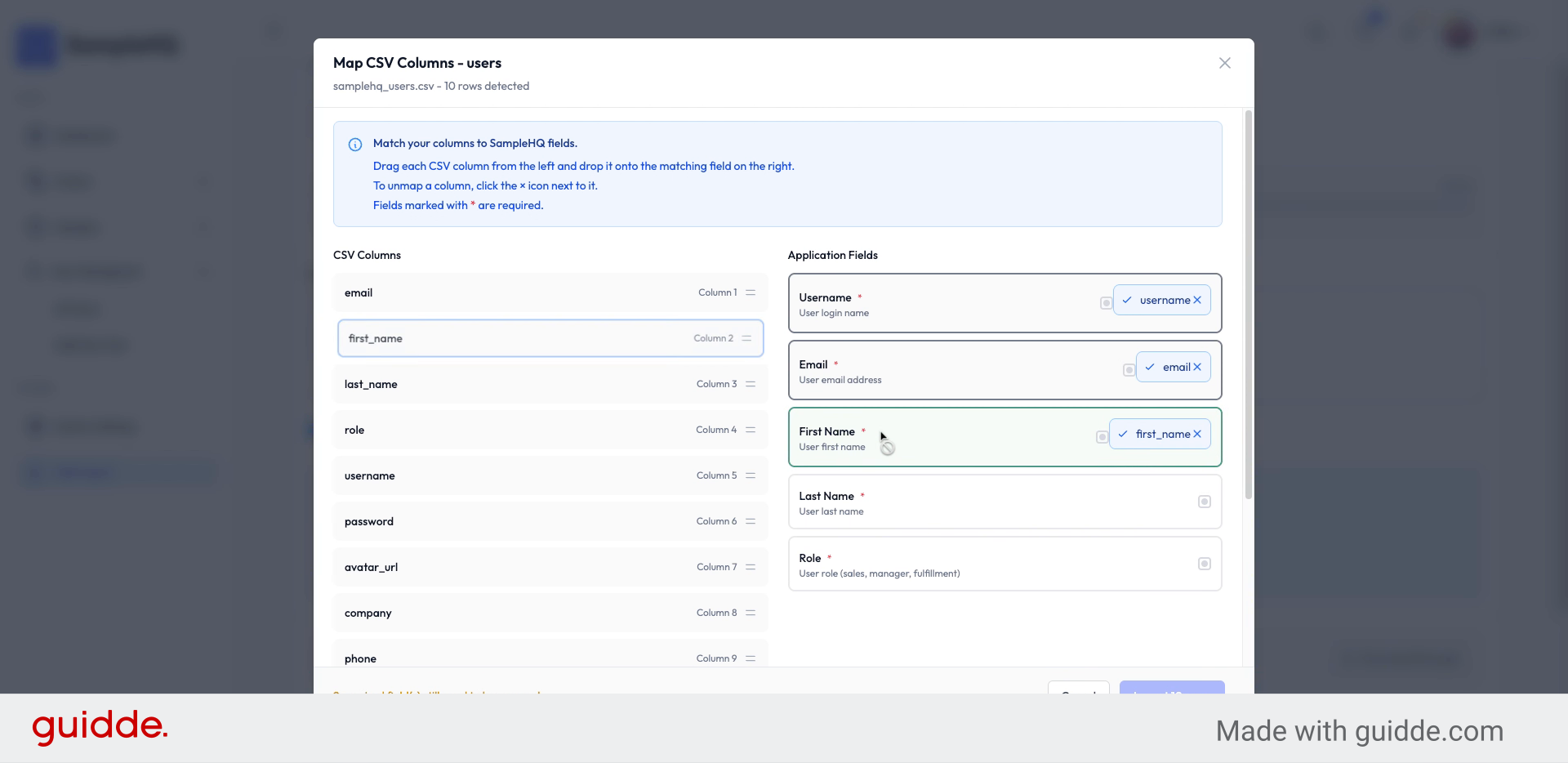
Choose the file from your device. You will then need to map the columns from your CSV file with the user fields in Sample HQ.
-
6. Map User Details
Map the first name, last name, and the user role fields accordingly.
-
7. Preview Mapped User Data
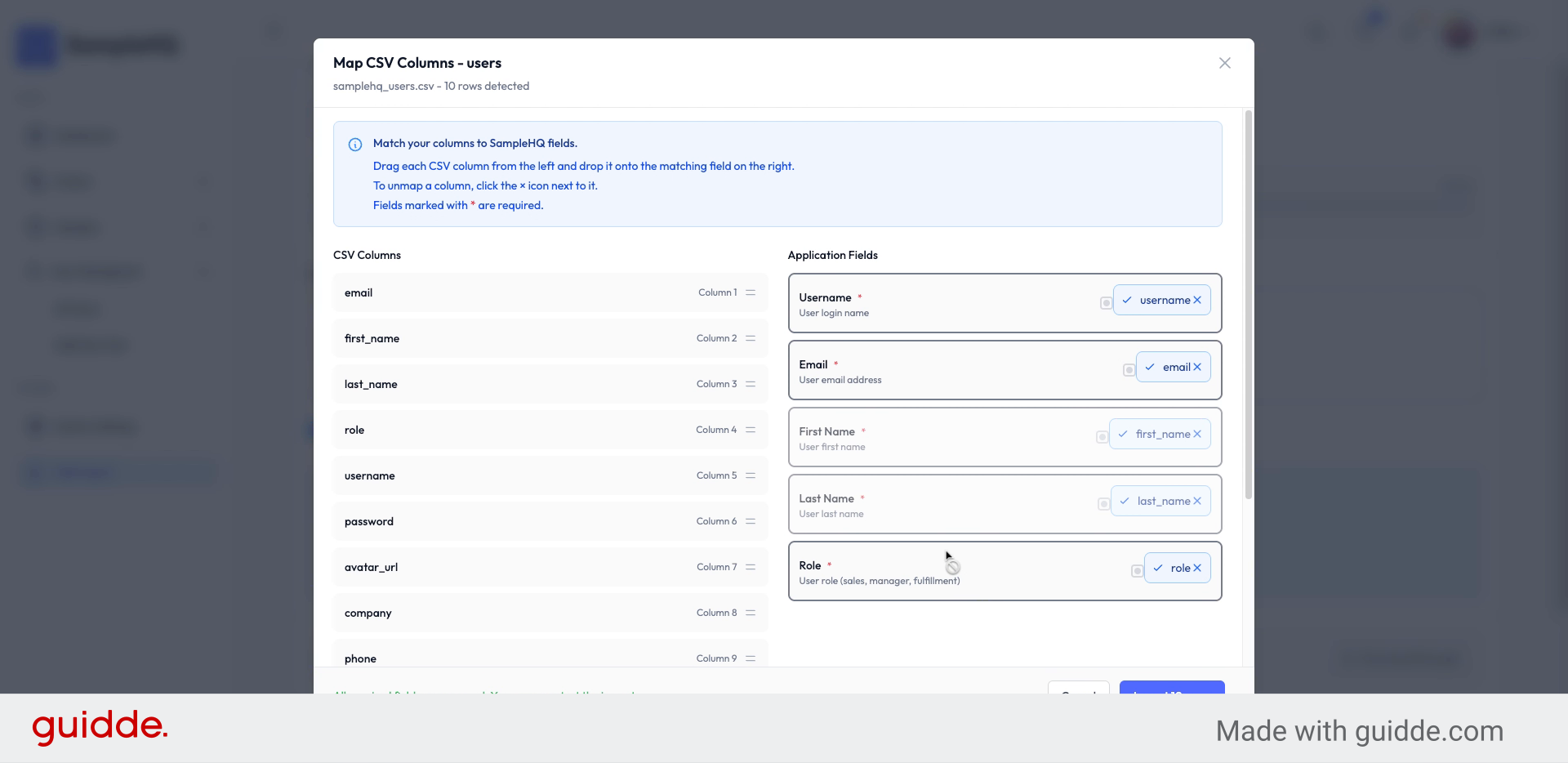
When you’re done mapping the fields, you will see a preview of your users and their information.
-
8. Import Users to System
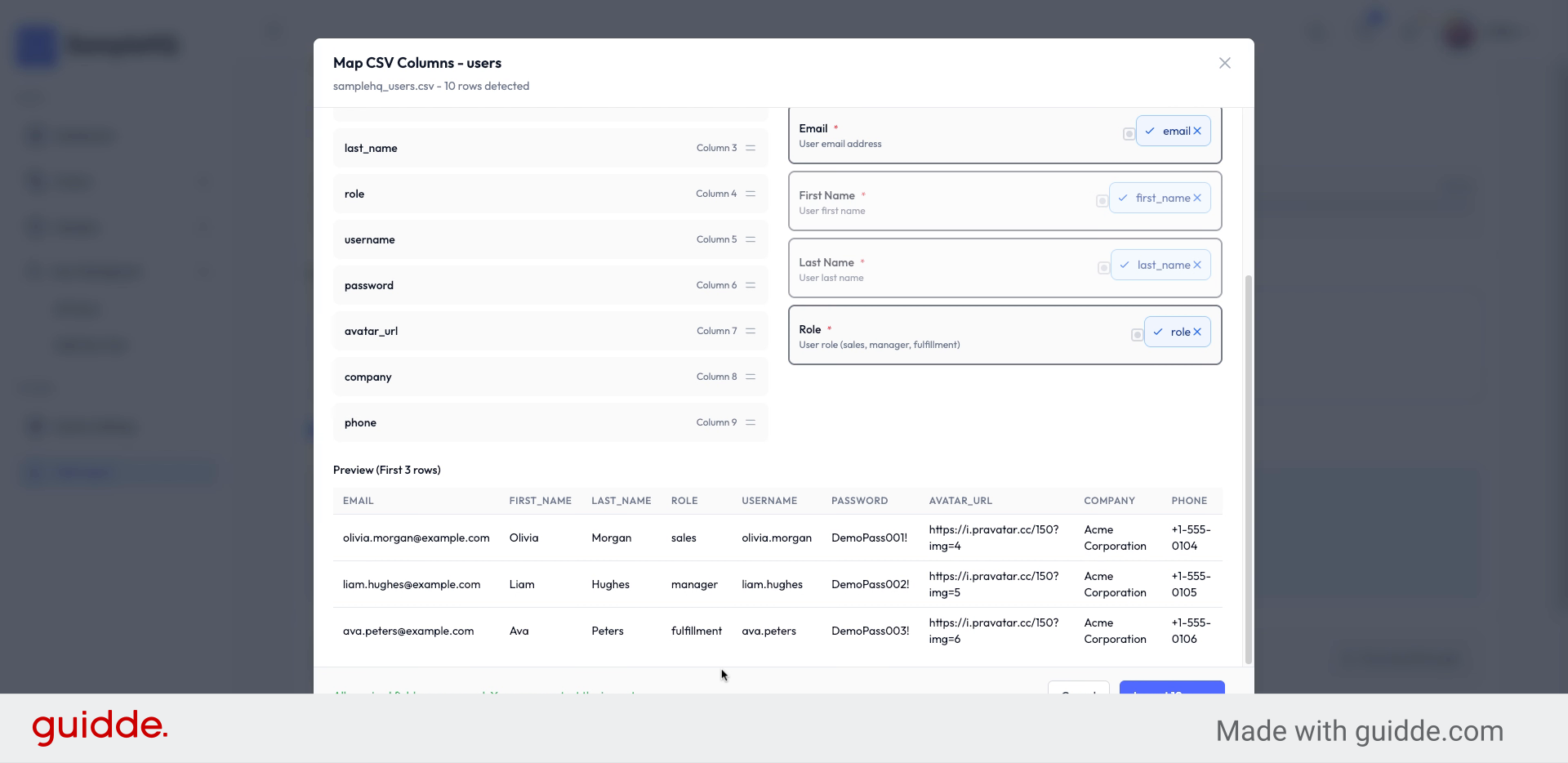
You just click Import, and our system will import the users in your workspace.
-
9. Overview
Now, when you go to all users, you will see that all the users have been added to the system. And that’s it. Now you have all your users in SampleHQ.
You have successfully imported multiple users into SampleHQ using the bulk import feature.


