There are two ways in which you can start creating a new order in SampleHQ.
-
Introduction
This tutorial will guide you through the process of selecting samples, entering customer details, and submitting your order for fulfillment.
-
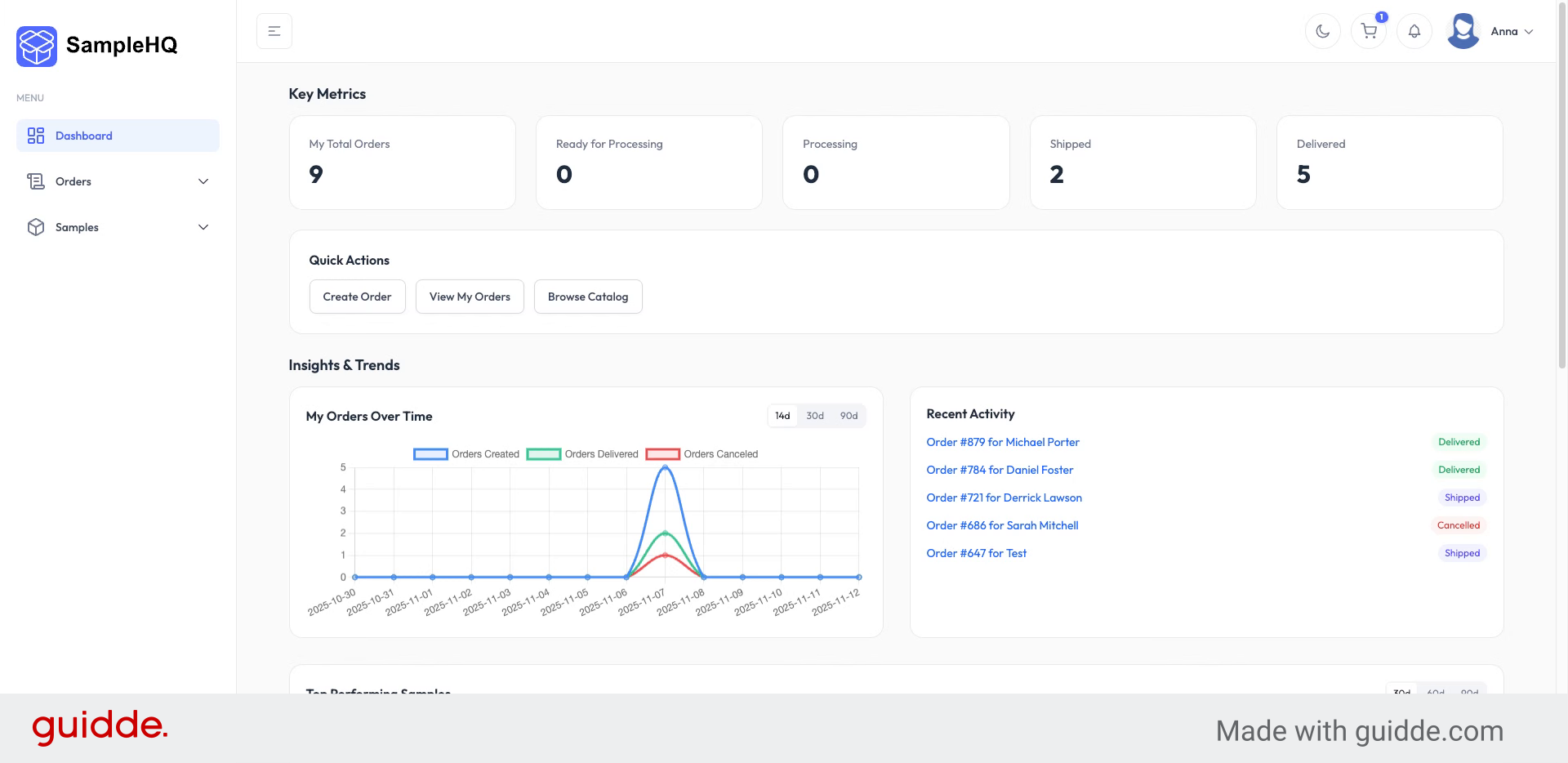
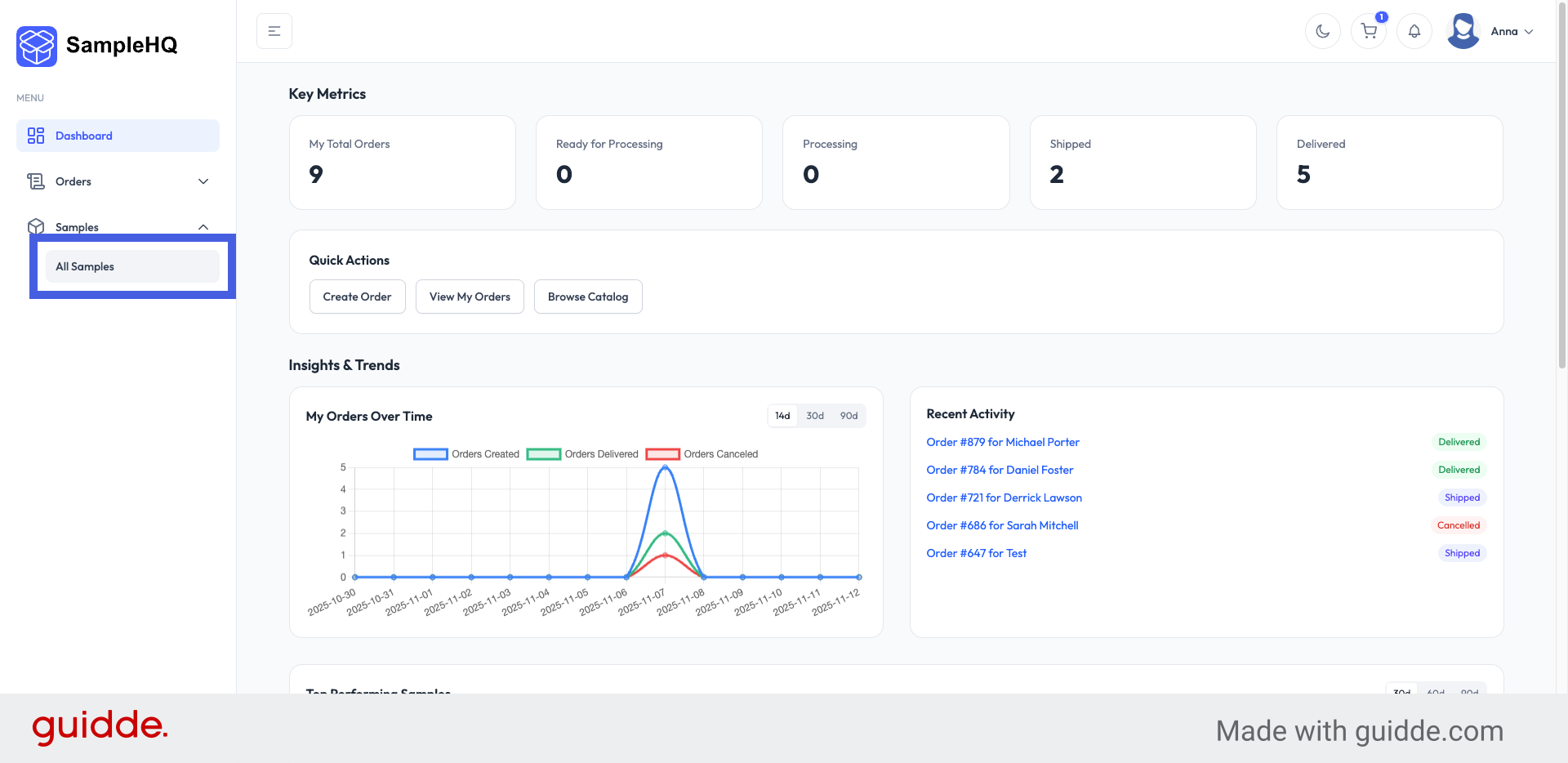
Open All Samples
To start, click All Samples to open your sample library.
-
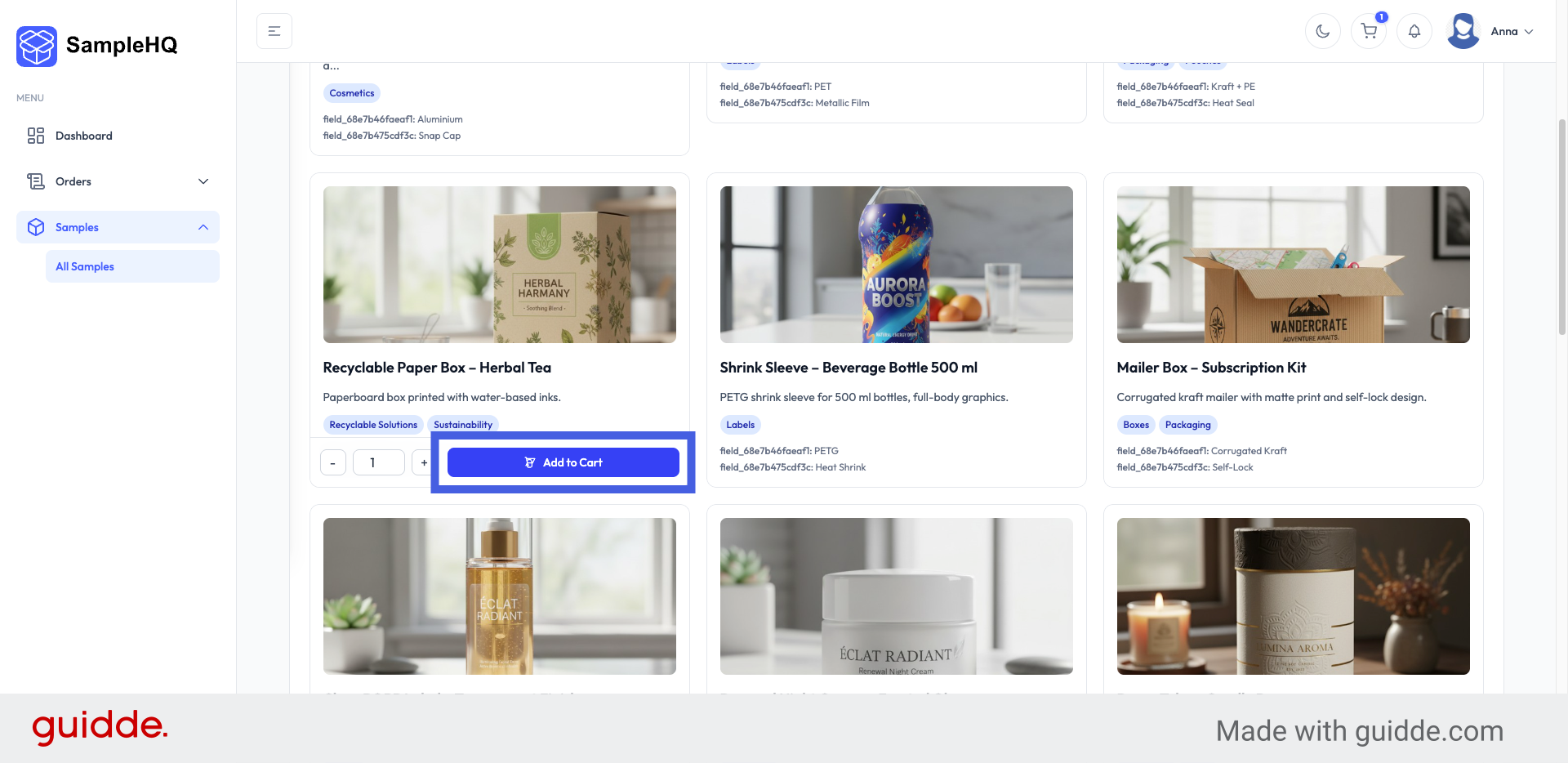
Add First Sample to Cart
Click Add to Cart to add the samples you want in your order.
-
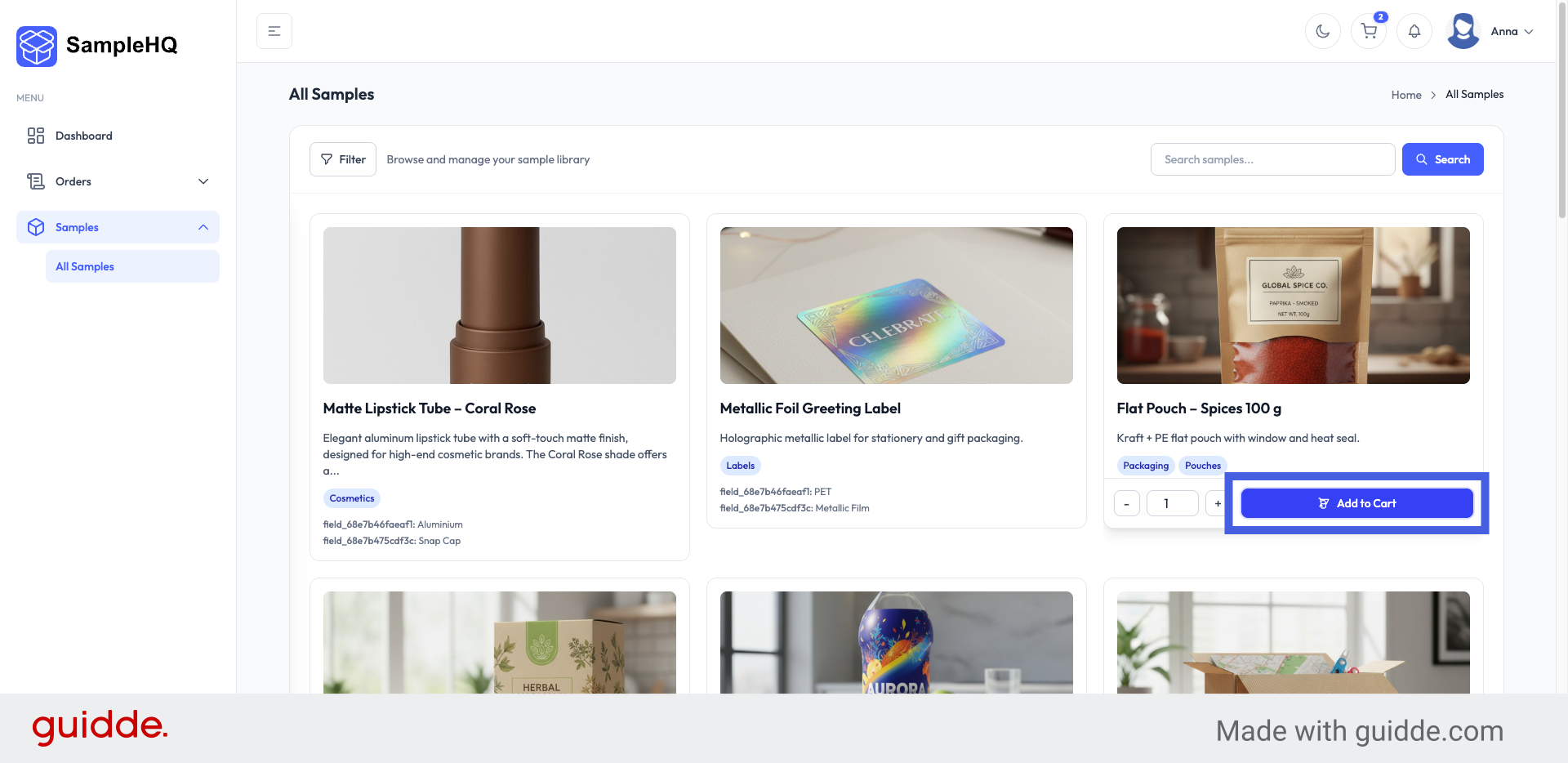
Add Second Sample to Cart
Click Add to Cart to add another sample to your order.
-
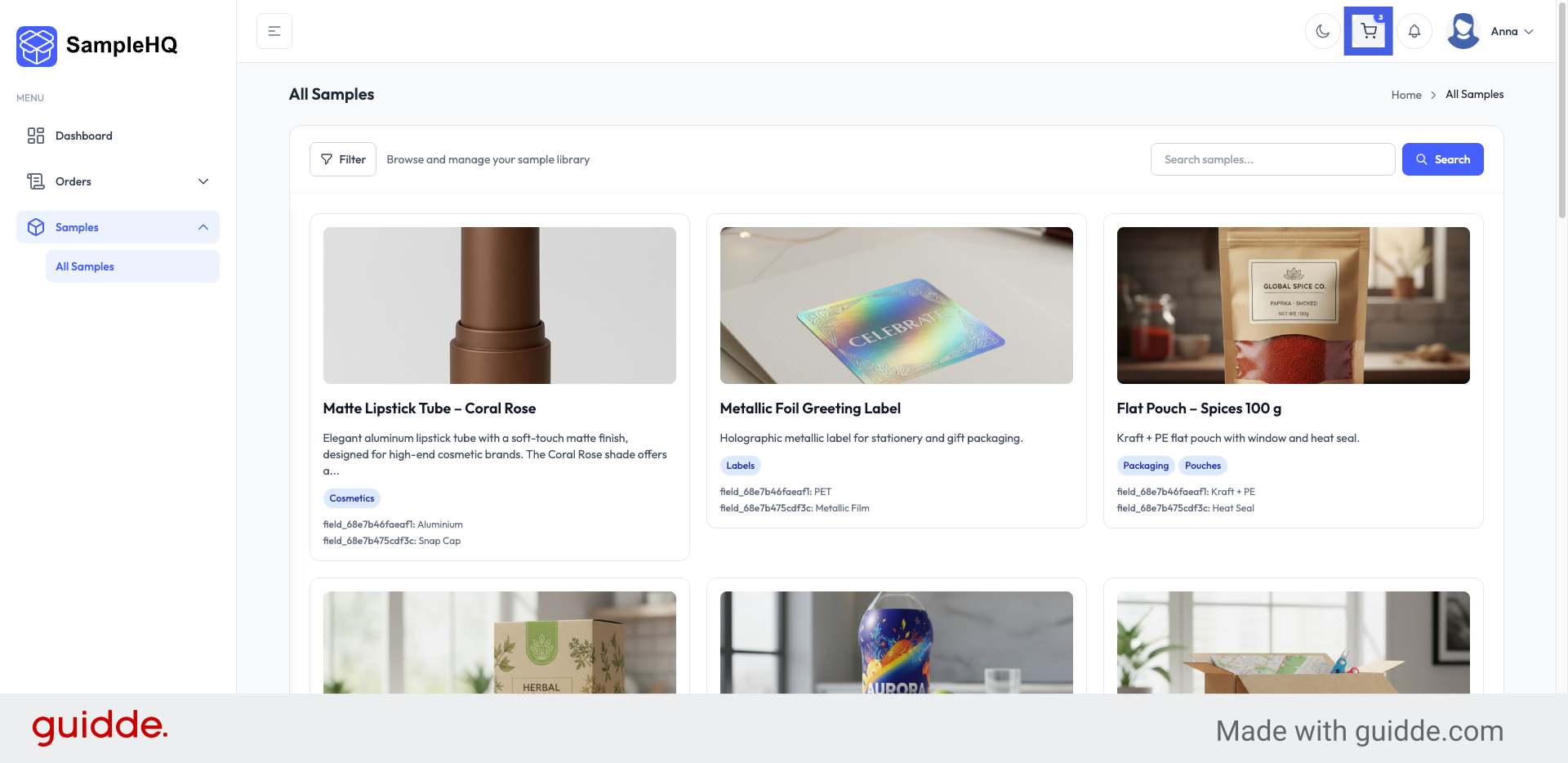
Access Cart or Order Link
To view your cart and proceed with the order, click the cart icon.
-
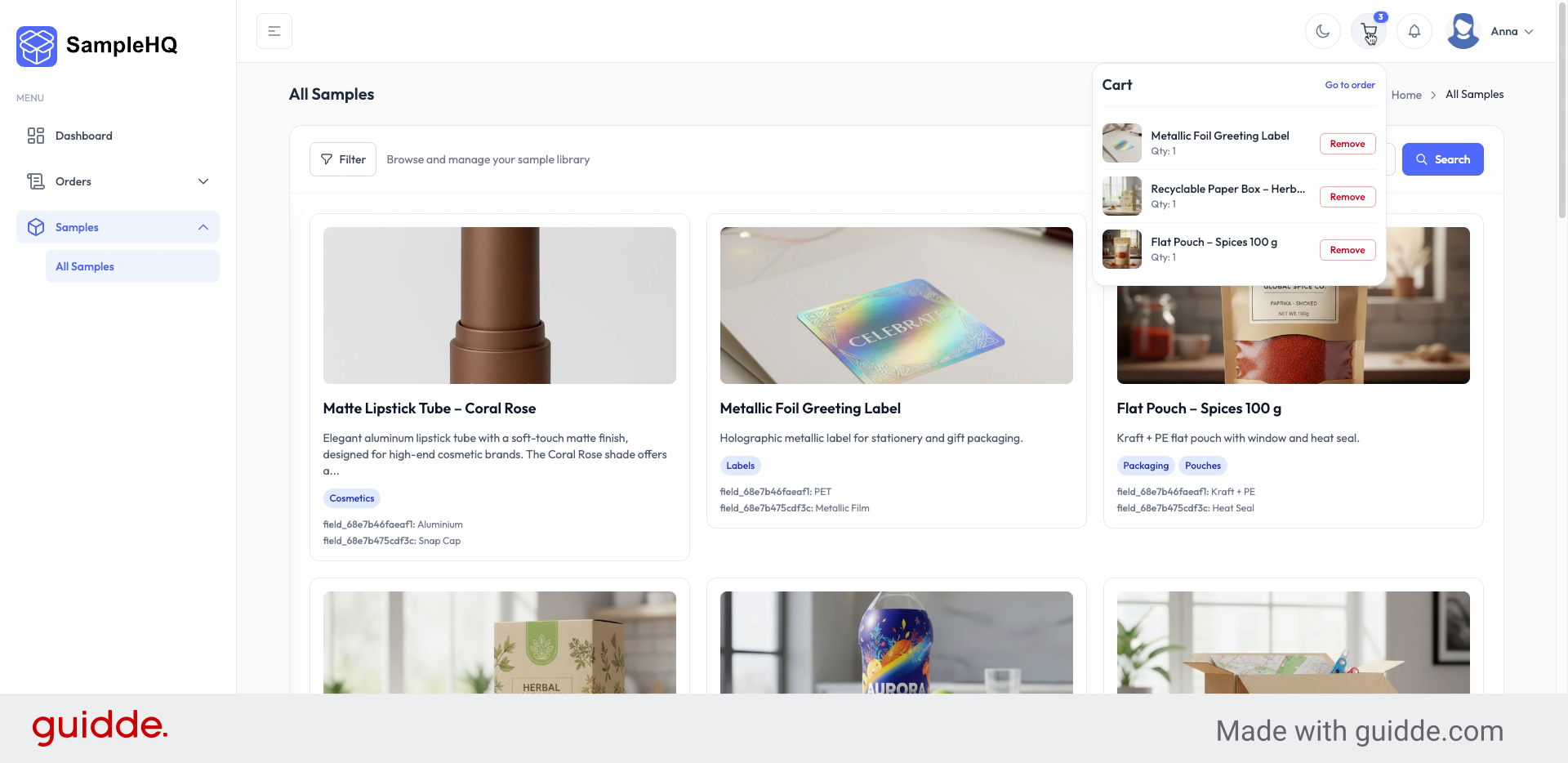
Go to Order
Next, click Go To Order to start the order.
-
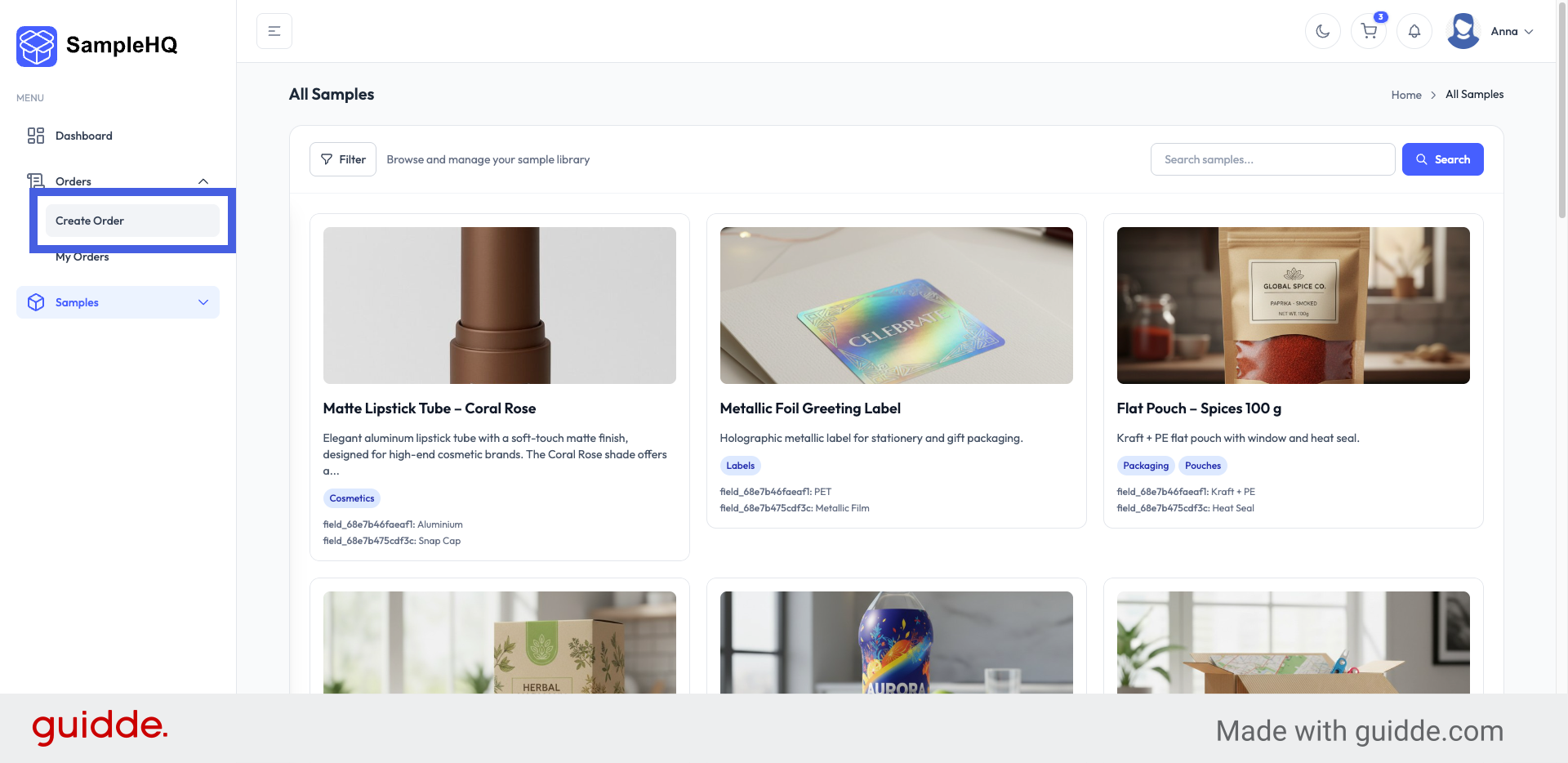
Create New Order from Orders Page
Or you can go to Orders in the left-side menu and click Create order.
-
Review Samples in the Order
Start by reviewing the samples that have been added to your order. If you need to include more, you can browse the library and add additional samples before proceeding.
-
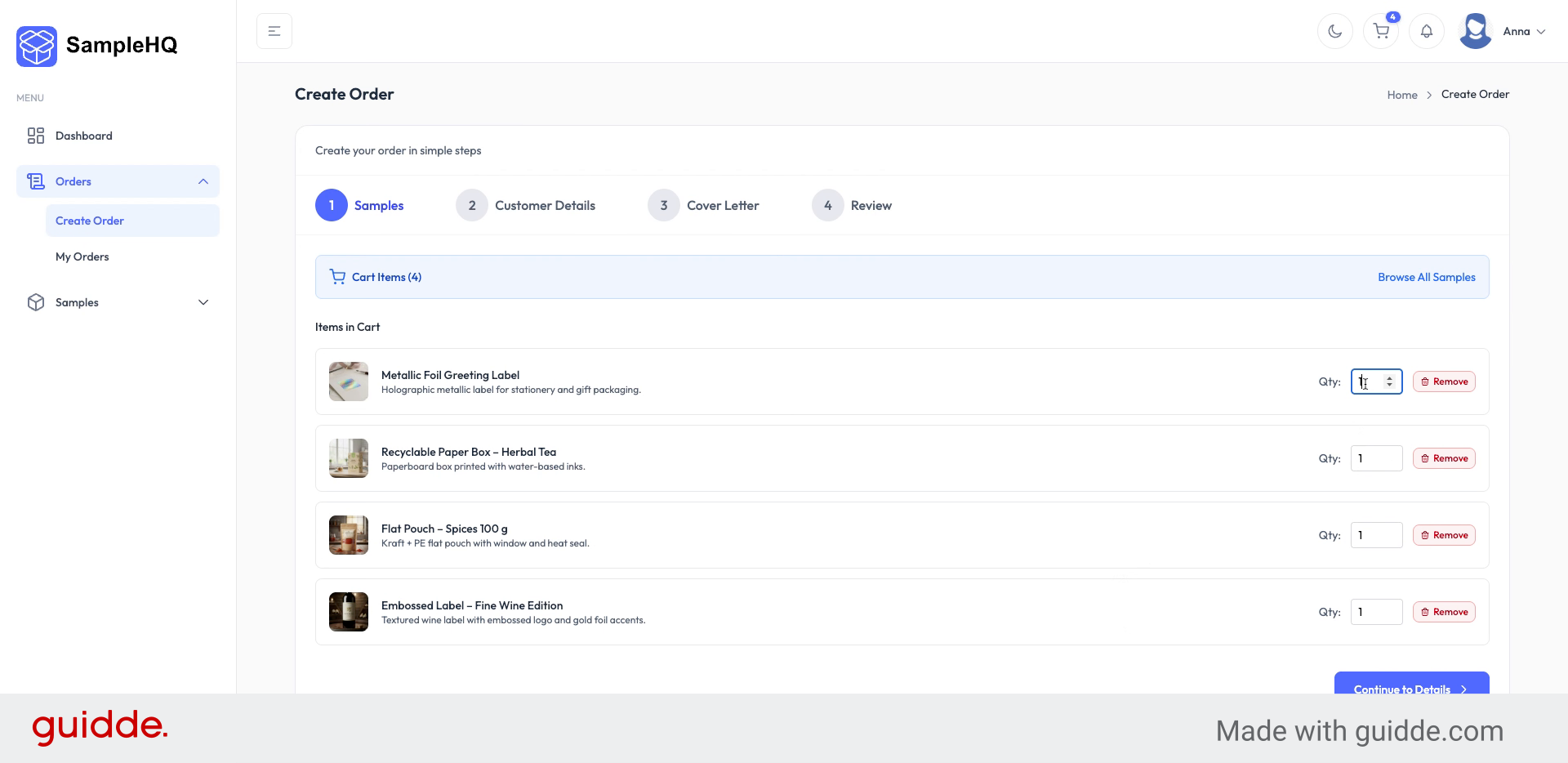
Edit Sample Quantity
Enter the desired quantity for the selected sample.
-
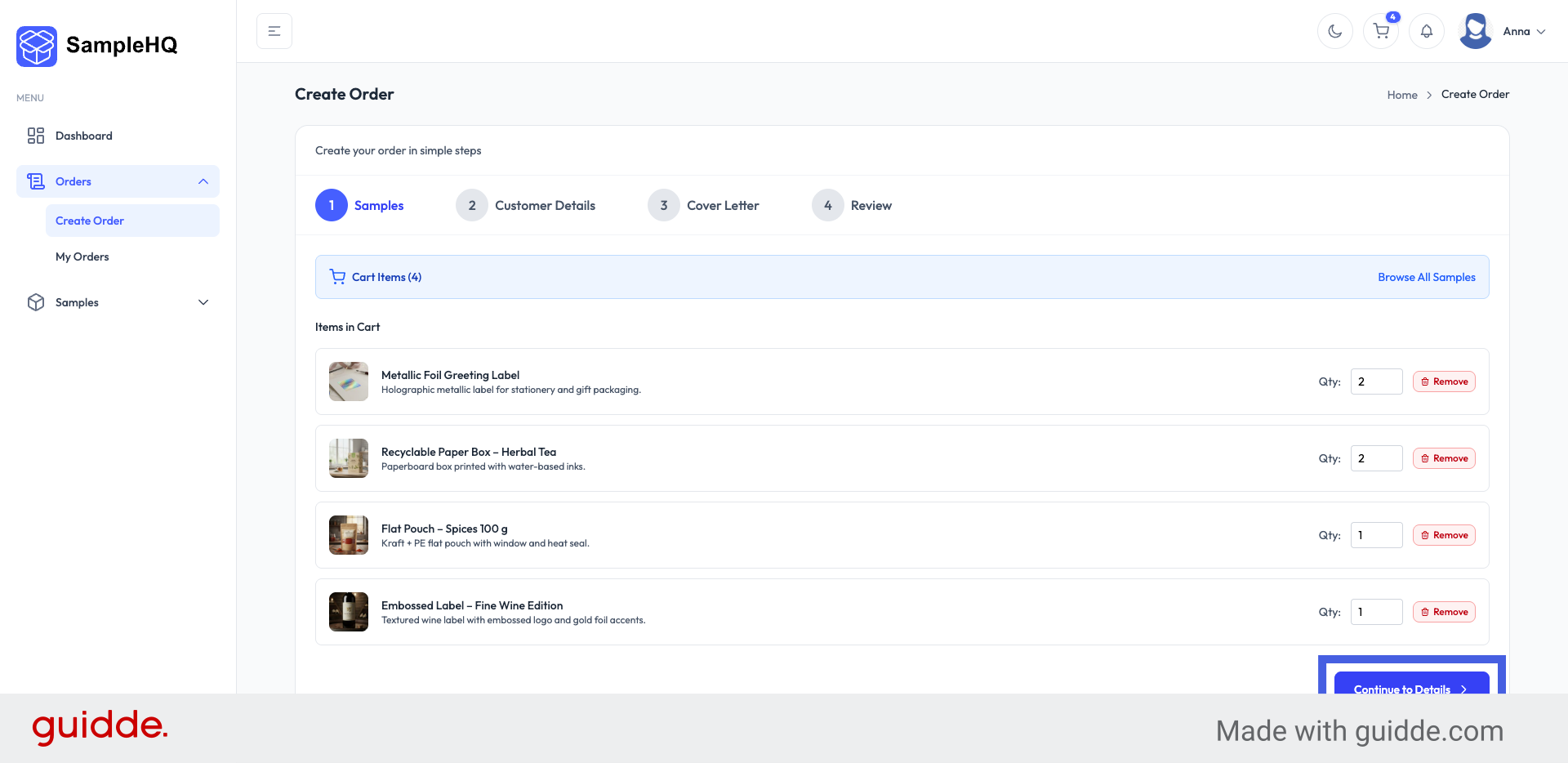
Proceed to Order Details
Click Continue to Details to enter customer information.
-
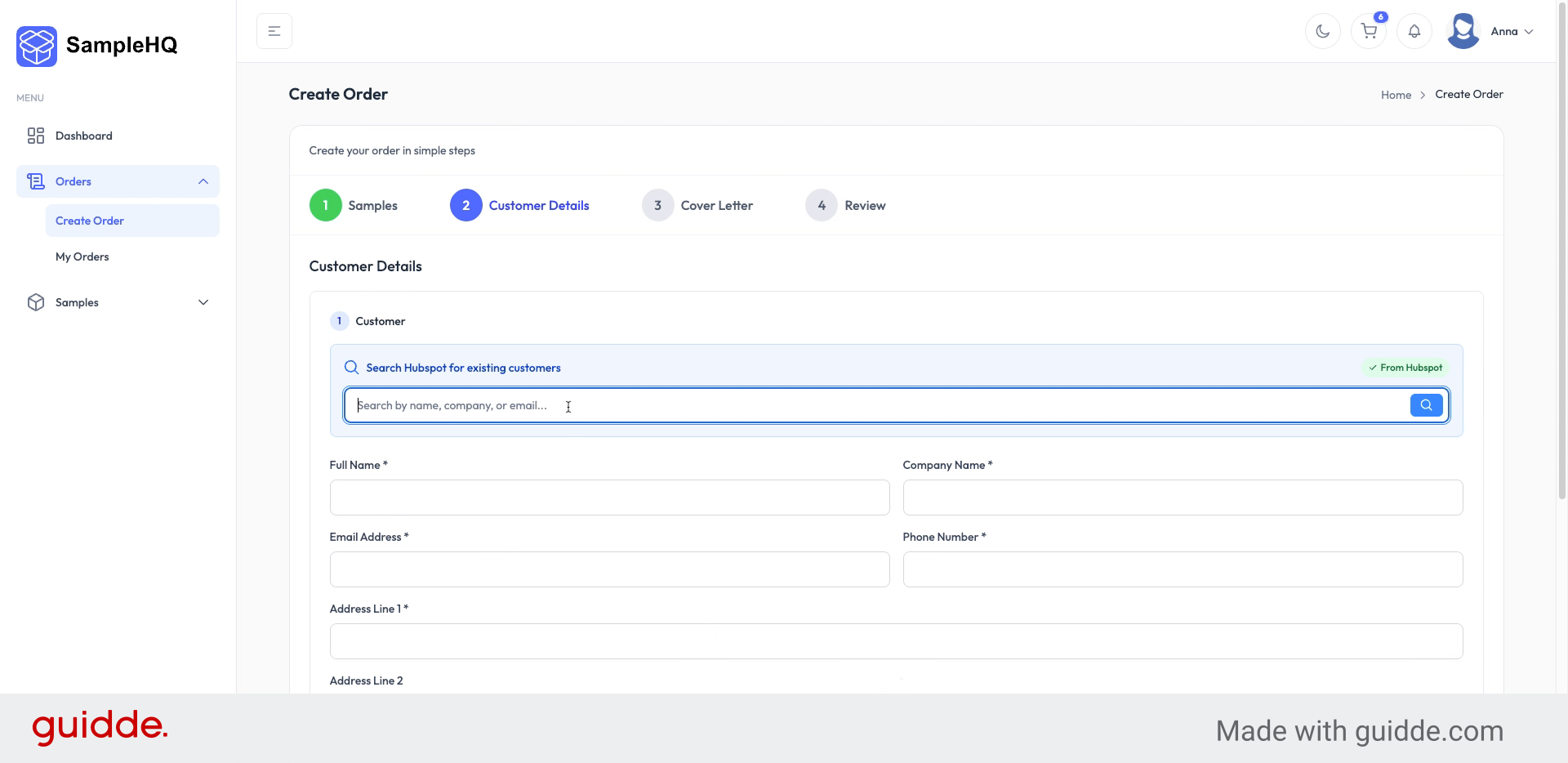
Enter Customer Name
If your CRM is connected to SampleHQ, start typing the customer’s name to locate their contact information.
-
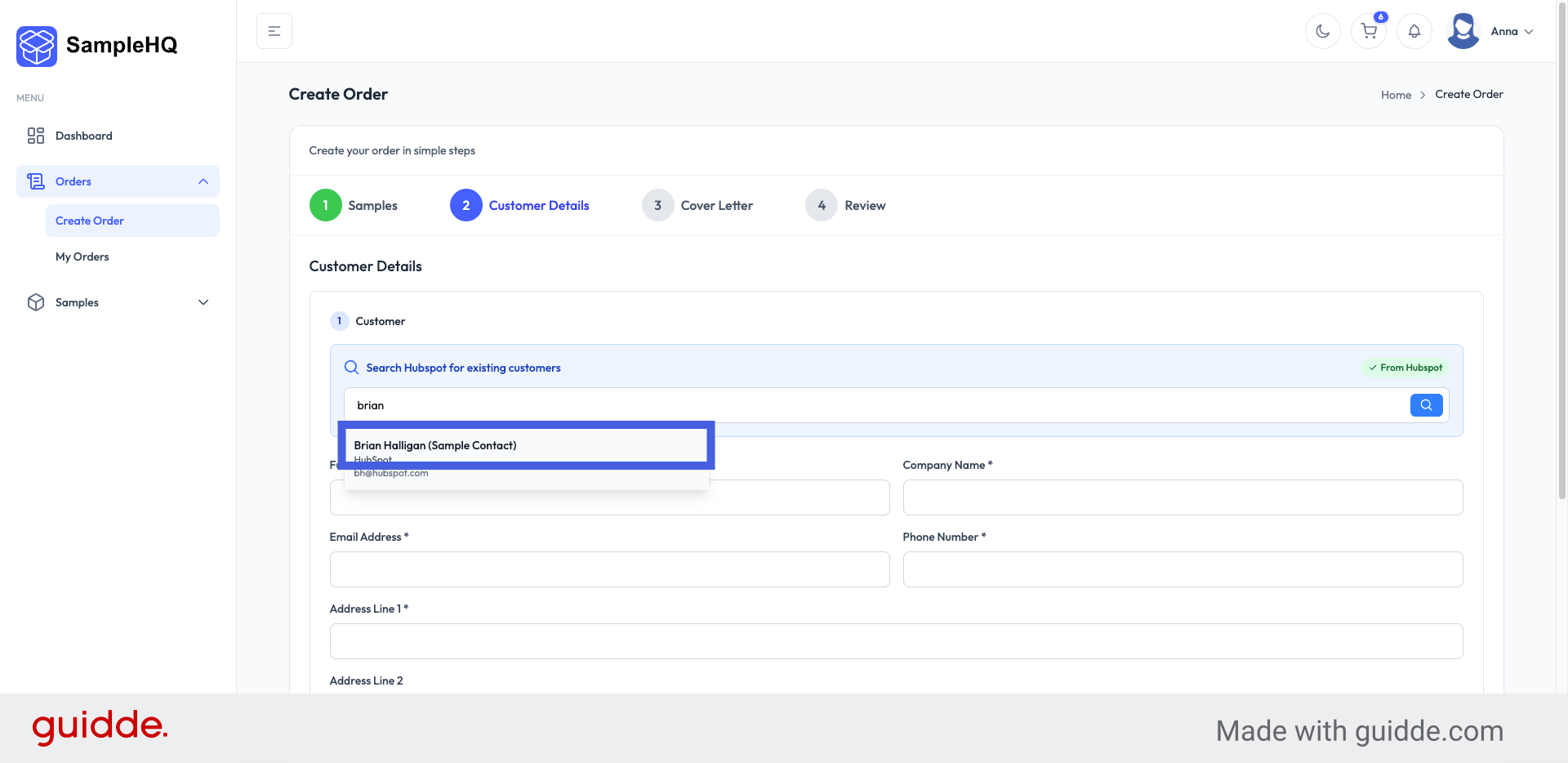
Select Customer Contact
Click the contact name to autofill customer details.
-
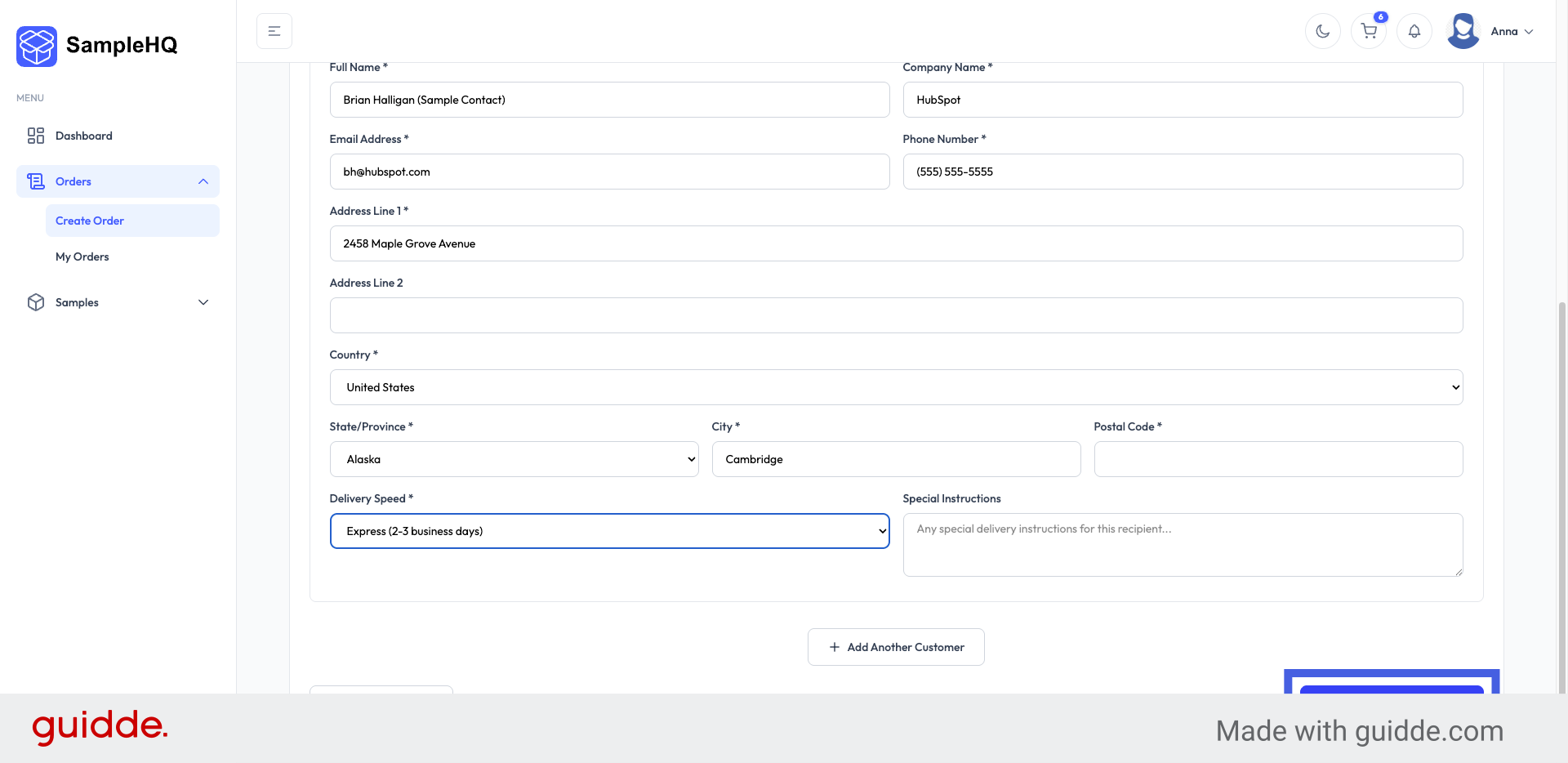
Continue to Cover Letter
When done, click Continue to Cover Letter to add a message for the customer.
-
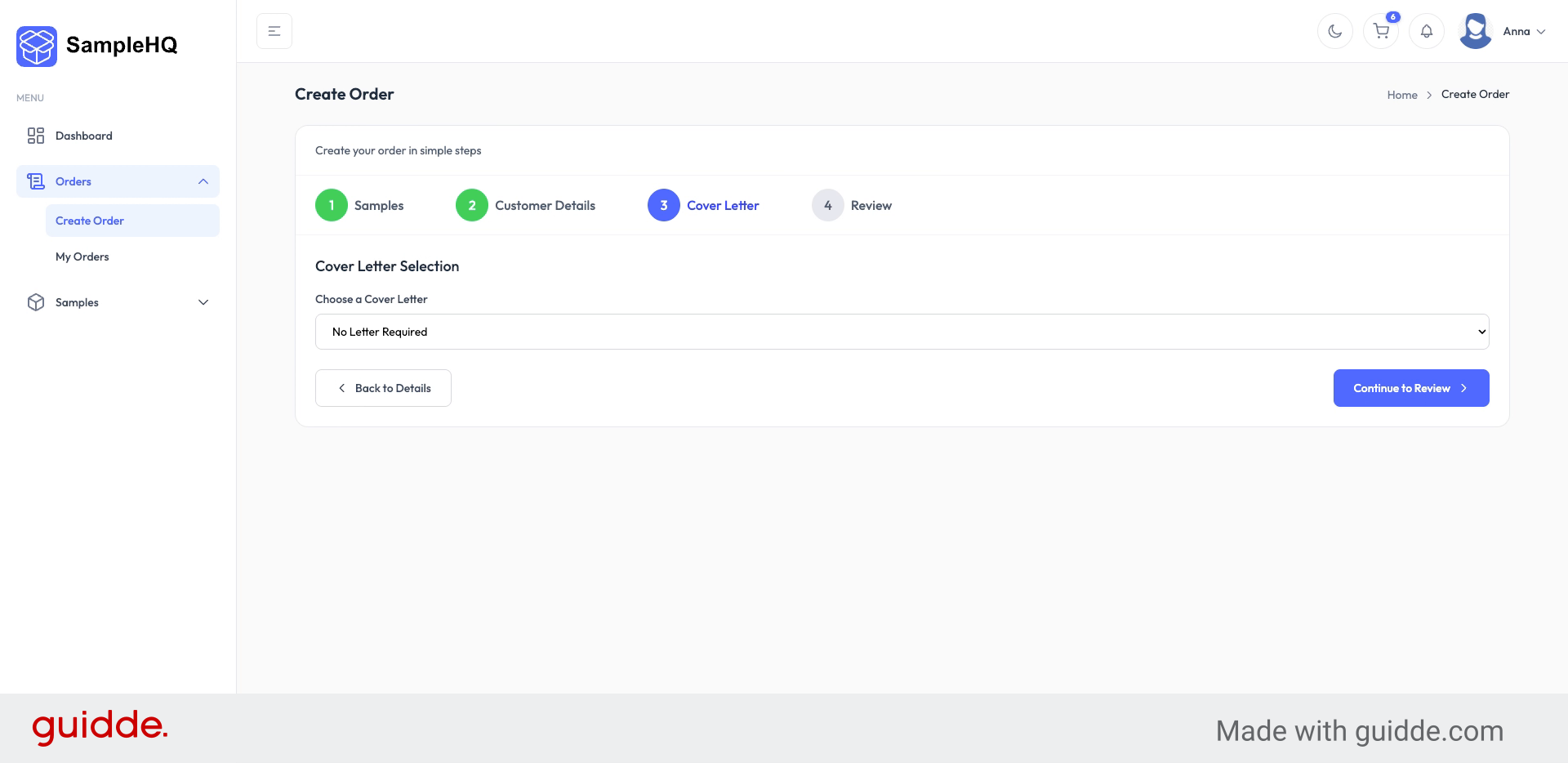
Fill Cover Letter Content
In this step, you can add a personalized cover letter to be sent with your samples, making your shipment feel more tailored and professional.
-
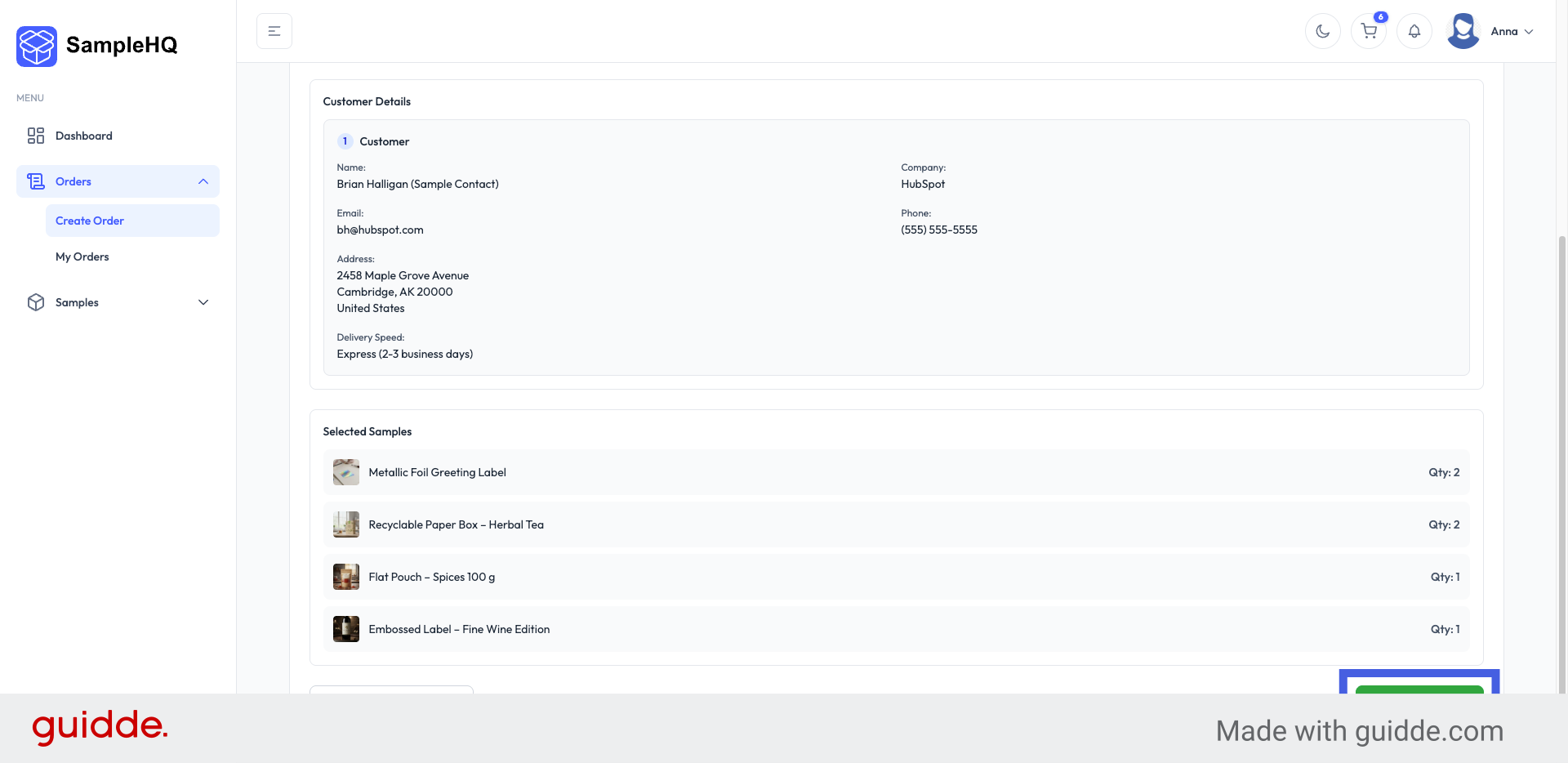
Submit Order
Next, review your order and click Submit Order to place your sample order.
-
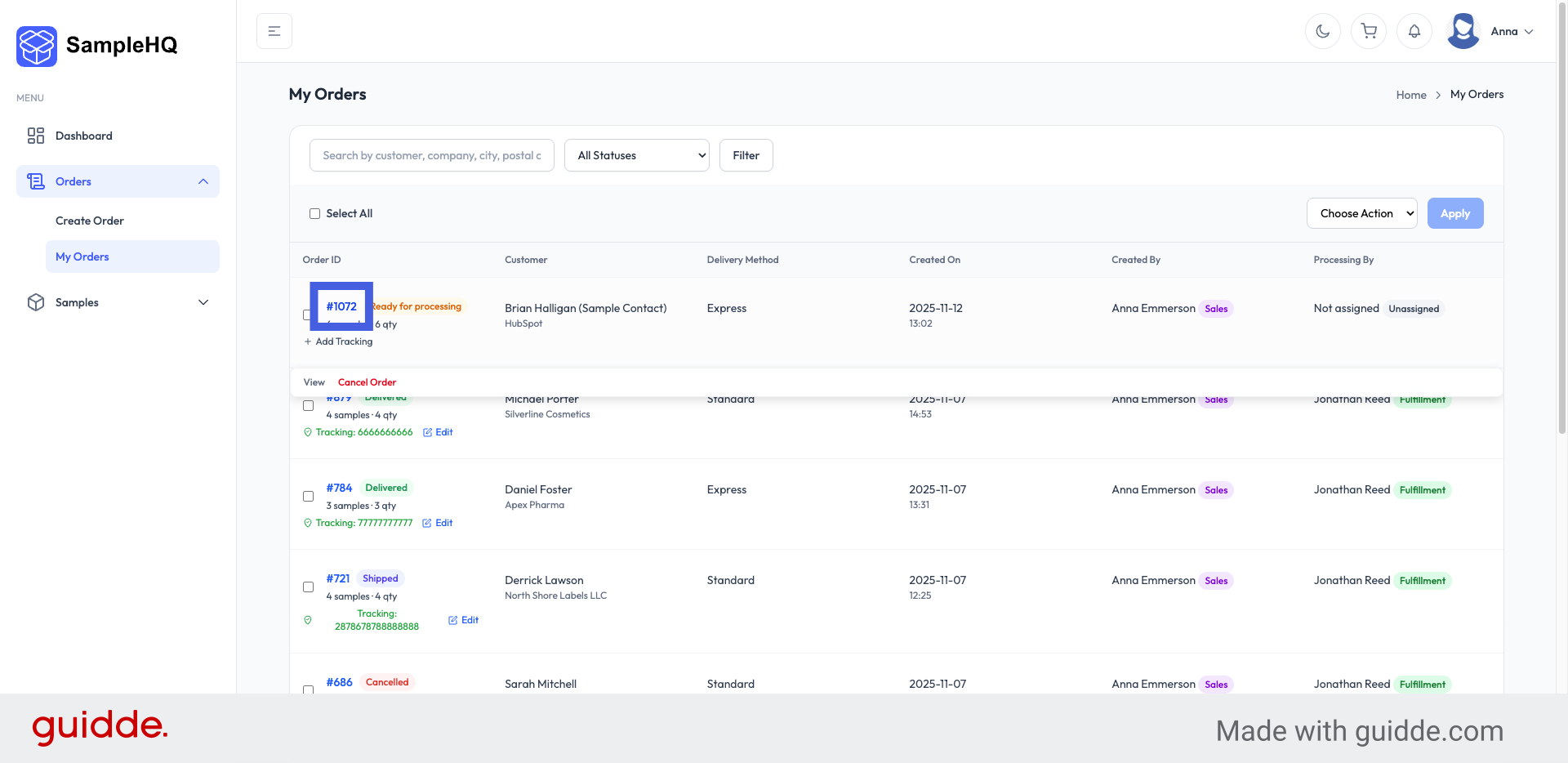
Open Order Details
To view the order details, click the Order ID.
-
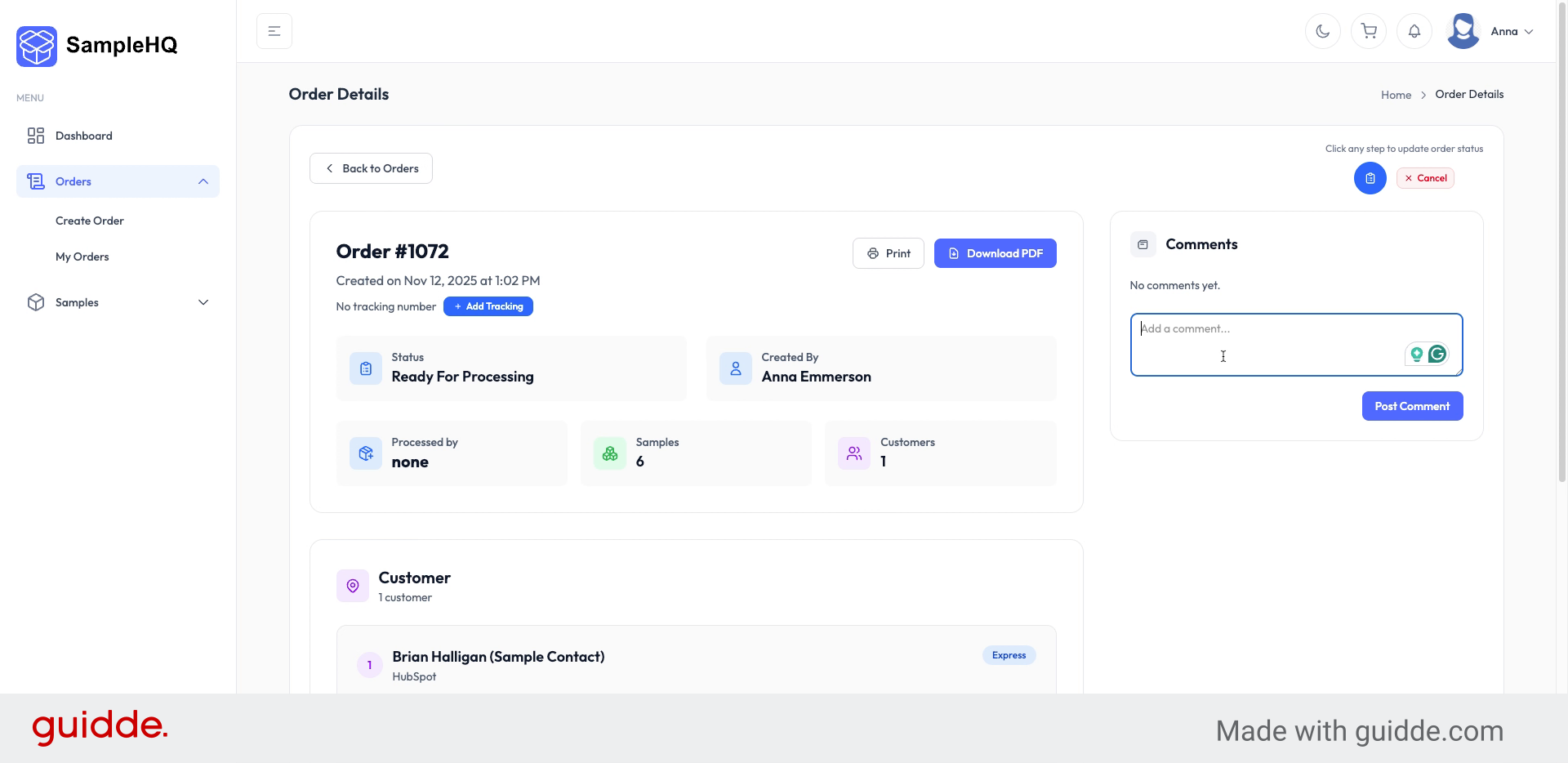
Enter Comment
If needed, click Add a comment to provide additional information about the order.
-
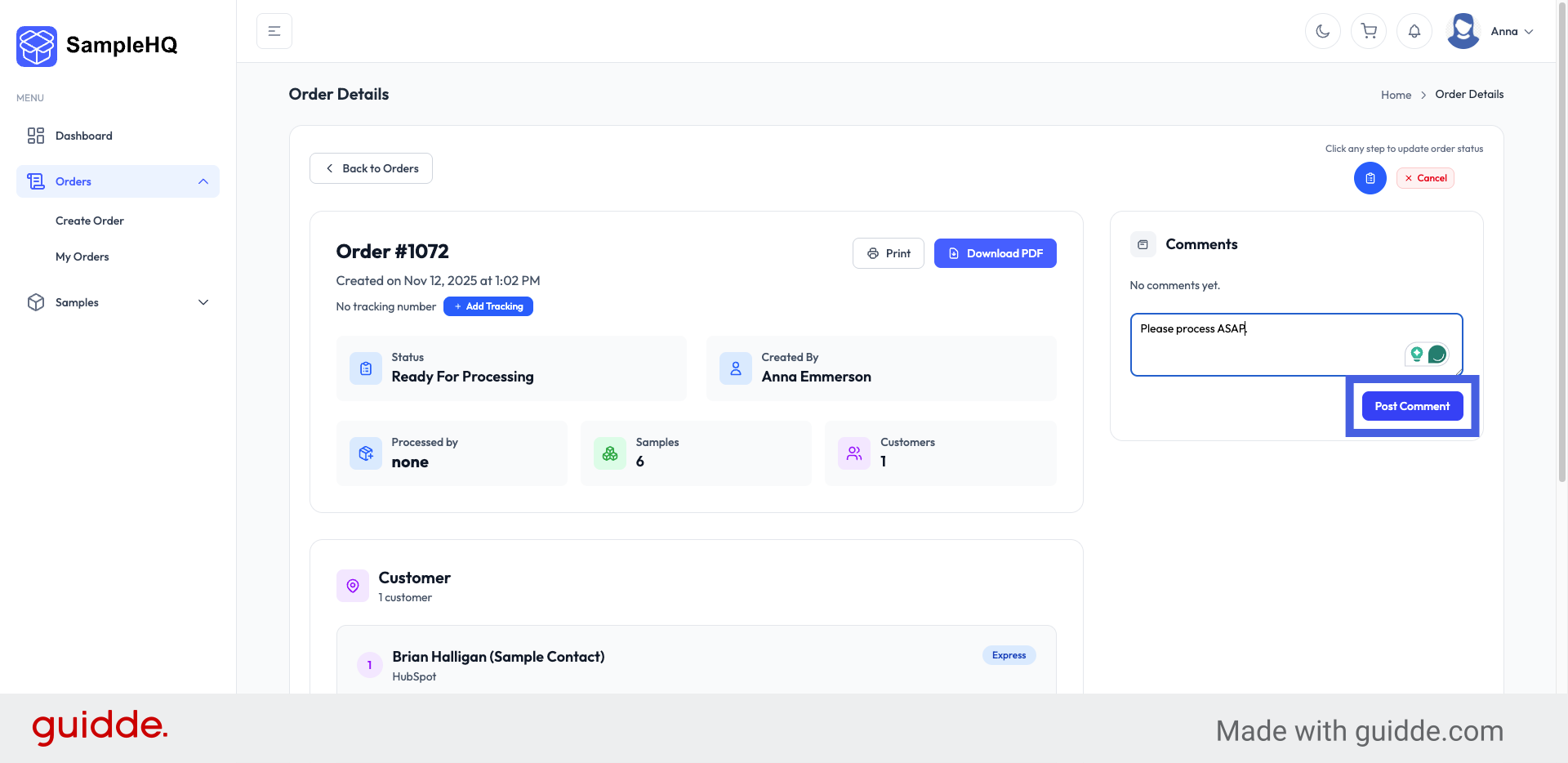
Post Comment
Click Post Comment to share your note with the team. Everyone linked to the order will be notified right away.
You have successfully created a samples order in SampleHQ by selecting samples, entering customer details, choosing delivery options, and submitting the order. You can now track your order and add comments as needed for fulfillment.


